Requesting a replacement
Where to start a replacement request, what the form asks for, and what the request action shows once you have asked.
4 min read
Before you start
- A lead delivered on a Premier order within the last seven days
Tip
Start from the Replacements page when you know the name or phone number but not which order the lead came on.
If a lead you received does not meet the standards in our Lead Replacement Policy, you can ask for a replacement from three places. All three open the same short form, and the request is handled the same way.
Where to start a request
From the Leads page. Open Leads in the left sidebar, find the lead, and click Actions at the end of its row. Choose Request Replacement. The Leads page lists leads delivered on your Premier orders.
From the order. Open Orders, open the Premier order the lead came on, and use Actions on the lead's row in the same way.
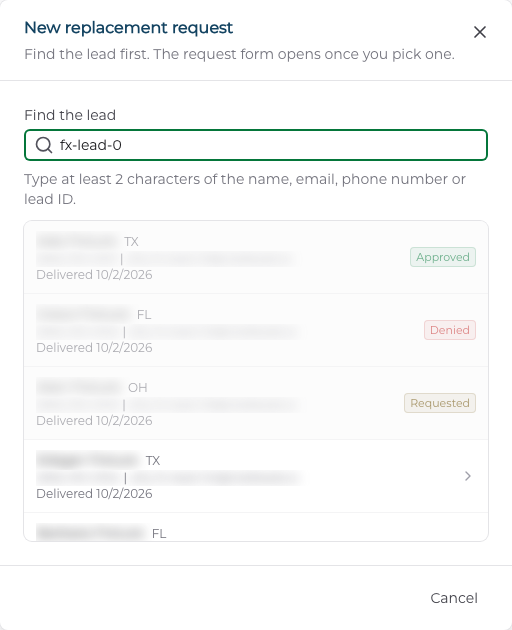
From the Replacements page. Open Replacements in the left sidebar and click New request at the top right. A search box opens under Find the lead. Type at least two characters of the lead's name, email, phone number or lead ID, then pick the lead from the list. Each result shows the date the lead was delivered to you.
Tip
Phone numbers match however you type them, so (555) 123-4567 and 5551234567 find the same lead.
Filling in the form
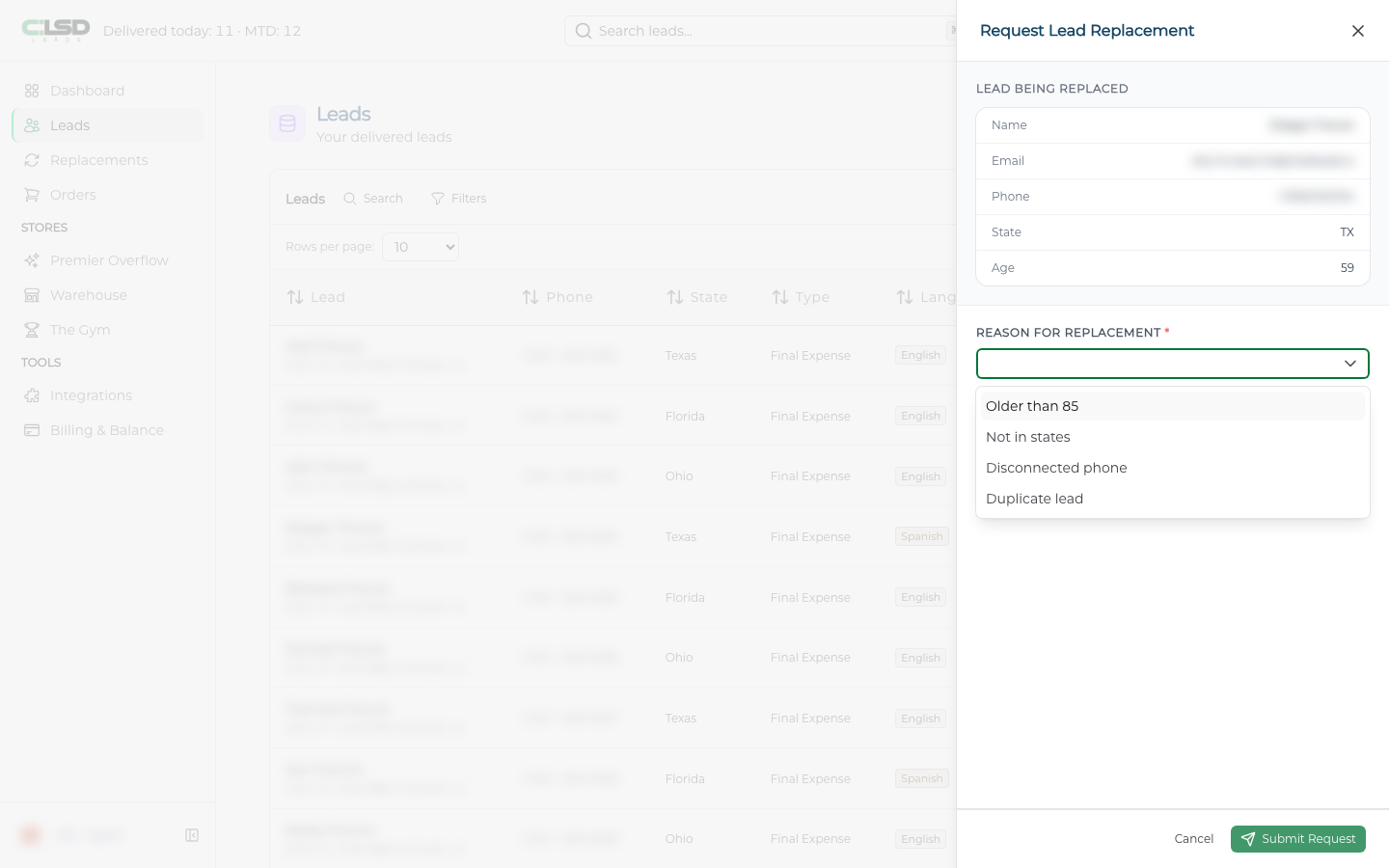
The form opens as a side panel titled Request Lead Replacement.
Step 1. Check the lead
Check the details under Lead Being Replaced at the top of the panel. This is the lead you are asking us to replace.
Step 2. Pick a reason
Pick a Reason for Replacement. The choices come from the grounds in our Lead Replacement Policy. See What qualifies for a replacement.
Step 3. Add a comment if it helps
Add anything that helps us understand what went wrong under Additional Comments. This is optional.
Step 4. Submit the request
Click Submit Request. The button stays disabled until you have picked a reason. Cancel closes the panel without sending anything.
You will see a Replacement Requested confirmation, and the request appears on your Replacements page with a status of Pending.
Note
Once we decide, the new status can take a short while to appear. A request we have already approved or denied may still read Pending for a bit.
The seven day window
Warning
You have seven days from delivery to ask for a replacement. After that the lead still shows in your lists, but the request action is closed for it.
How the days are counted, with a worked example, is in The seven day replacement window.
If something kept you from asking inside the window, our team can still file a request on your behalf. Reach out through Getting support and we will take a look.
Troubleshooting
Why is the request action grayed out?
A lead carries one request. Once you have asked, the Actions entry for that lead reads Replacement requested and cannot be clicked again, and the lead shows a Requested badge in the New request search. Decided requests show the same way, as Replacement approved or Replacement denied in the Actions menu and as Approved or Denied in the search.
Why does the entry read Window closed?
The seven day window has passed for that lead. The Actions entry reads Window closed on followed by the date it closed, and in the New request search the lead carries a Window closed badge and cannot be picked. The lead stays in your lists. Only the request action has closed.
Why can't I find the lead in the New request search?
It is usually an aged lead. The search, the Leads page and the request form only cover leads delivered on a Premier order. For a lead you bought in Premier Overflow or the Warehouse, send the request to our team through Getting support and we will file it for you. A Premier lead that has not been released to you yet is also left out until it is delivered.
Where do I see the decision?
Every request is reviewed. Open Replacements to see where yours stands. A denied request shows a note under its status explaining why. See Tracking your replacement requests.
For a disconnected phone request, the carrier's report on the line decides. A disconnected number is replaced and a wrong number is not. If the carrier reports the line in service, the request is denied with a note saying so. The request can stay Pending while the carrier check is completed.