Sending leads to a webhook
How to have every lead sent to your own system as soon as it is delivered, with the same fields as the Google Sheet.
2 min read
Before you start
- A CLSD account
- A webhook URL that starts with https:// (from Zapier, Make, your CRM or your own server)
Tip
Most automation tools give you a "catch hook" or "incoming webhook" URL. Copy that URL into CLSD, then send yourself a test lead to map the fields.
A webhook sends each lead straight to a web address you choose. Use it when your CRM or automation tool is not on our list. Zapier, Make and most CRMs can give you a webhook URL.
Setting it up
Step 1. Start a new integration
Open Integrations in the left sidebar and click Add Integration.
Step 2. Name it and choose Webhook
Give it a Nickname. Under Delivery Method, choose Webhook.
Step 3. Paste your URL
In Webhook URL, paste the URL your tool gave you. It must start with https://.
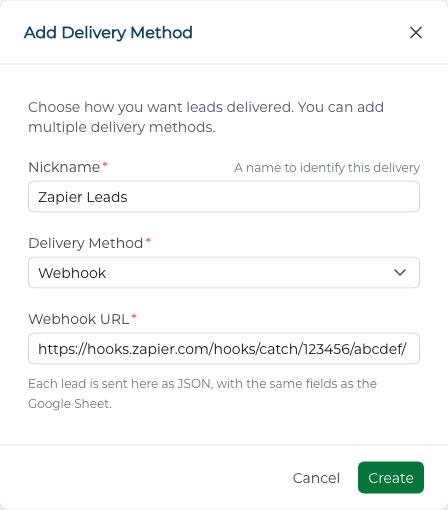
Step 4. Create it
Click Create. If CLSD cannot use the URL, a message says why. Fix the URL and try again.
The new method shows on Integrations as a card with its URL.
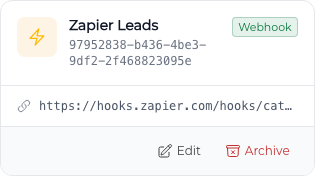
Then attach the new method to an order, the same way as any other delivery method.
What each lead looks like
Each lead is sent as one POST request with a JSON body. It carries the same fields as a row in the Google Sheet, and nothing else.
{
  "firstName": "Ann",
  "lastName": "Lee",
  "phone": "5551234567",
  "email": "ann@example.com",
  "created": "11/17/2026, 12:00 PM",
  "amount": "$10,000",
  "timeline": "ASAP",
  "state": "Texas",
  "beneficiary": "Son",
  "purpose": "Burial",
  "age": "64",
  "hobby": "Golf",
  "currentCoverage": "None"
}
createdis the date and time the lead was delivered to you, in Central time.stateis the full state name.- Every value is text.
- When a lead type asks questions of its own, each answer is added after
currentCoverage, the same as on that lead type's tab in the Google Sheet.
If a lead does not arrive
Your URL must answer with a success code (200 to 299) within 10 seconds. If it does not, that lead is marked as failed for this method. CLSD does not follow redirects, so give the final URL, not one that forwards somewhere else.
Once your URL is working, contact support to have failed leads sent again.
Note
CLSD only sends to public internet addresses. A URL that points to a private network, or that starts with http://, is refused.