Receiving leads by email
How to have each lead emailed to you, which address it goes to, and what the email contains.
4 min read
Before you start
- A CLSD account
- An email address you check
Tip
When CLSD asks whether to attach a new method to your running orders, say yes and every lead already delivered on them is sent to the new address too.
Email is the simplest way to receive leads. Every lead delivered to your order arrives as its own email, and you do not have to connect anything. This article covers setting it up, choosing it on an order, and what lands in your inbox.
Adding an email delivery method
Step 1. Start a new integration
Open Integrations in the left sidebar and click Add Integration.
Step 2. Name it and choose Email
Give it a Nickname, something like My Work Email. Under Delivery Method, choose Email.
Step 3. Check the address
Check the Email Address. It starts out as your account email, and you can change it to any address you like.
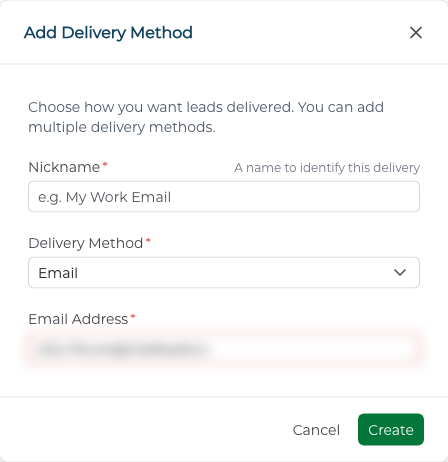
Step 4. Create it
Click Create. If you have orders running, CLSD then asks whether to attach the new method to them. Tick the orders you want and click the attach button, which names how many orders you picked, or click Skip. Attaching also sends every lead already delivered on those orders to the new address, so you do not have to go find them.
Note
Leads go to the Email Address on the delivery method, and only there. Your account email is just the default we fill in. If you want leads at a different address, edit the method or add a second one.
Choosing email on an order
When you place a Premier order, the Delivery Method field on the order form lists your active methods that are working, with every one selected. A method that needs reconnecting is left out until you fix it. Untick any you do not want on that order. Leads on an order go to every method attached to it, so you can have email and a CRM at the same time.
To change the methods on an order you already have, open the order from Orders and click Delivery Methods. Here you can add a method, remove one (an order has to keep at least one), and tick Back-fill existing leads to send the leads already delivered to the method you are adding.
What the email looks like
Each email comes from CLSD Platform at no-reply@clsdleads.io with the subject New Closable Lead. The body is a short table of the lead's details. First Name, Last Name, Phone, Email, Received, Amount of Coverage, Timeline for Coverage, State, Beneficiary, Purpose of Coverage, Age, Favorite Hobby and Current Coverage. Received is the date and time the lead was delivered to you, shown in Central time. For a Spanish language order the subject and labels are in Spanish.
A lead from a Premier order also appears on your Leads page, and a lead from an aged order is on that order's own page, so the email is never your only copy.
Changing or stopping it
On Integrations, every method is a card. The Edit button lets you change the nickname or the address. Archive stops leads going to it. Archived methods sit on the Archived tab, where you can Reactivate or Delete them. Orders that used an archived method keep their other methods.
Troubleshooting
A lead email is missing
Check your spam folder and add no-reply@clsdleads.io to your contacts. The lead is still on your Leads page if it came from a Premier order, or on the order's own page if it came from an aged order. To send the email again, use Re-Push Deliveries from the lead's Actions menu. See Viewing and exporting your leads.
Leads are going to the wrong address
They go to the Email Address on the delivery method, not to your account email. Open Integrations, click the Edit button on the card, and change the address, or add a second email method with the address you want.
I added a new method. Do old leads get sent to it?
Yes, if you ask. When you create the method, tick the running orders in the attach prompt and the leads already delivered on them go to the new address. On an existing order, open Delivery Methods and tick Back-fill existing leads when you add it.
I archived my email method. What happens to my orders?
Orders that used it keep their other methods. An order has to keep at least one, so add another before you archive the only one. The Archived tab lets you Reactivate it later.