How leads arrive over time
What happens after you place a Premier order, from the start date you picked to the day the last lead lands.
3 min read
Before you start
- A paid Premier order
Tip
The Summary column on the Orders list shows leads received out of leads ordered, so you can check progress without opening the order.
Leads from a Premier order arrive over a stretch of days, starting on the date you pick, until you have the exact number you ordered. This article covers what you see along the way.
The confirmation email
As soon as your payment goes through, you get an email headed Your order is confirmed. It lists the order number, lead type, language, how many leads you ordered, the states, your start date and the total, with a View your order button that opens the order in CLSD.
The email also says when to expect leads. The campaign launches on your start date and leads arrive as they are generated, rather than all at once. They go to the delivery method you chose at checkout, and the order page shows them as they land.
Note
If a team leader bought the order for you, your email is headed An order was placed for you instead. It has no total on it, and its button reads Track your order. The person who paid gets their own email headed Payment confirmed.
Before the start date
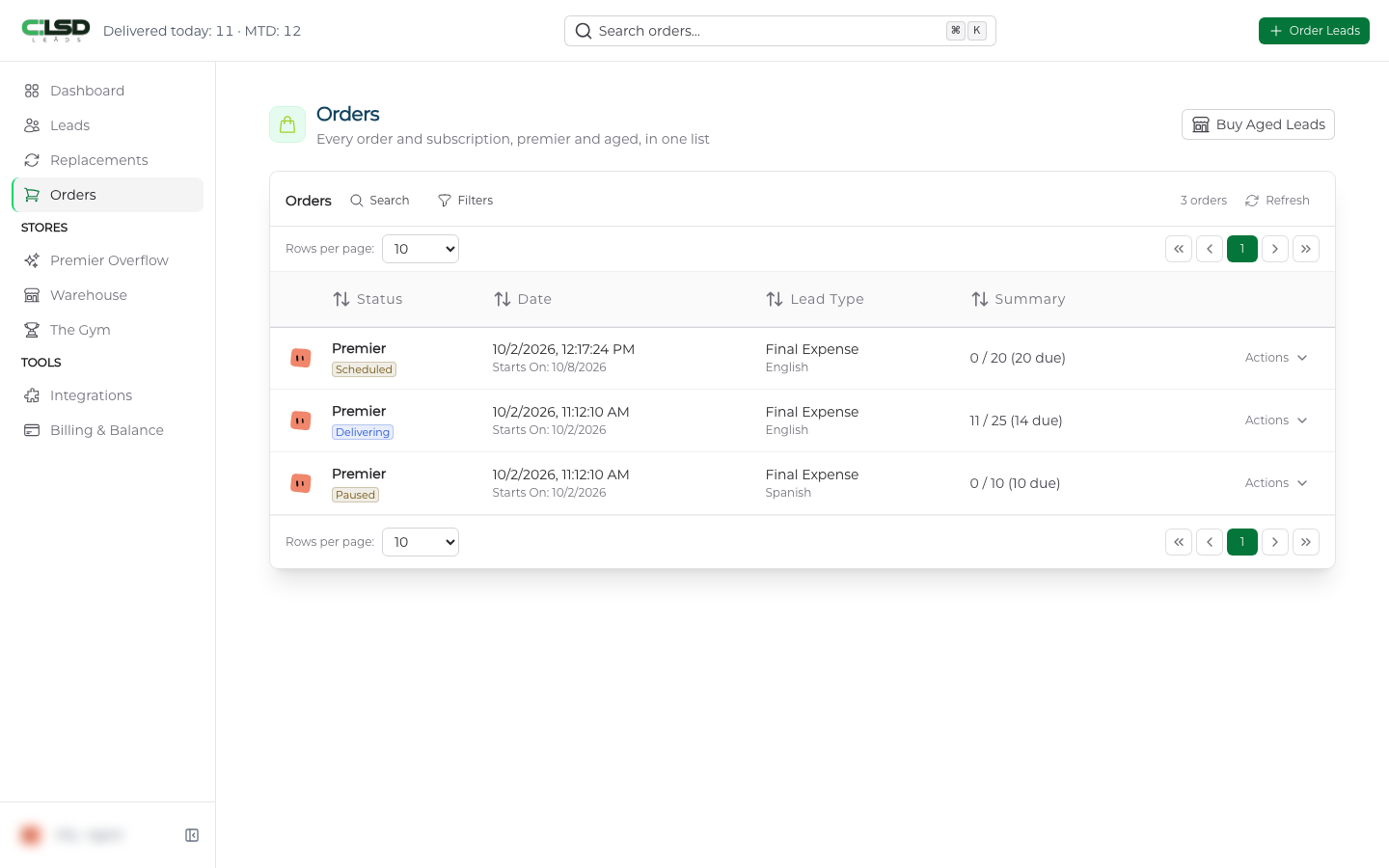
Open Orders in the left sidebar. Until the start date you picked, the order's status chip reads Scheduled, and under the order date you will see Starts On with that date. Nothing arrives before then. The date is set when you place the order and can be changed only before you pay.
While leads are arriving
Once the start date passes, the chip changes to Delivering. The Summary column shows how many leads you have received out of how many you ordered, and how many are still due.
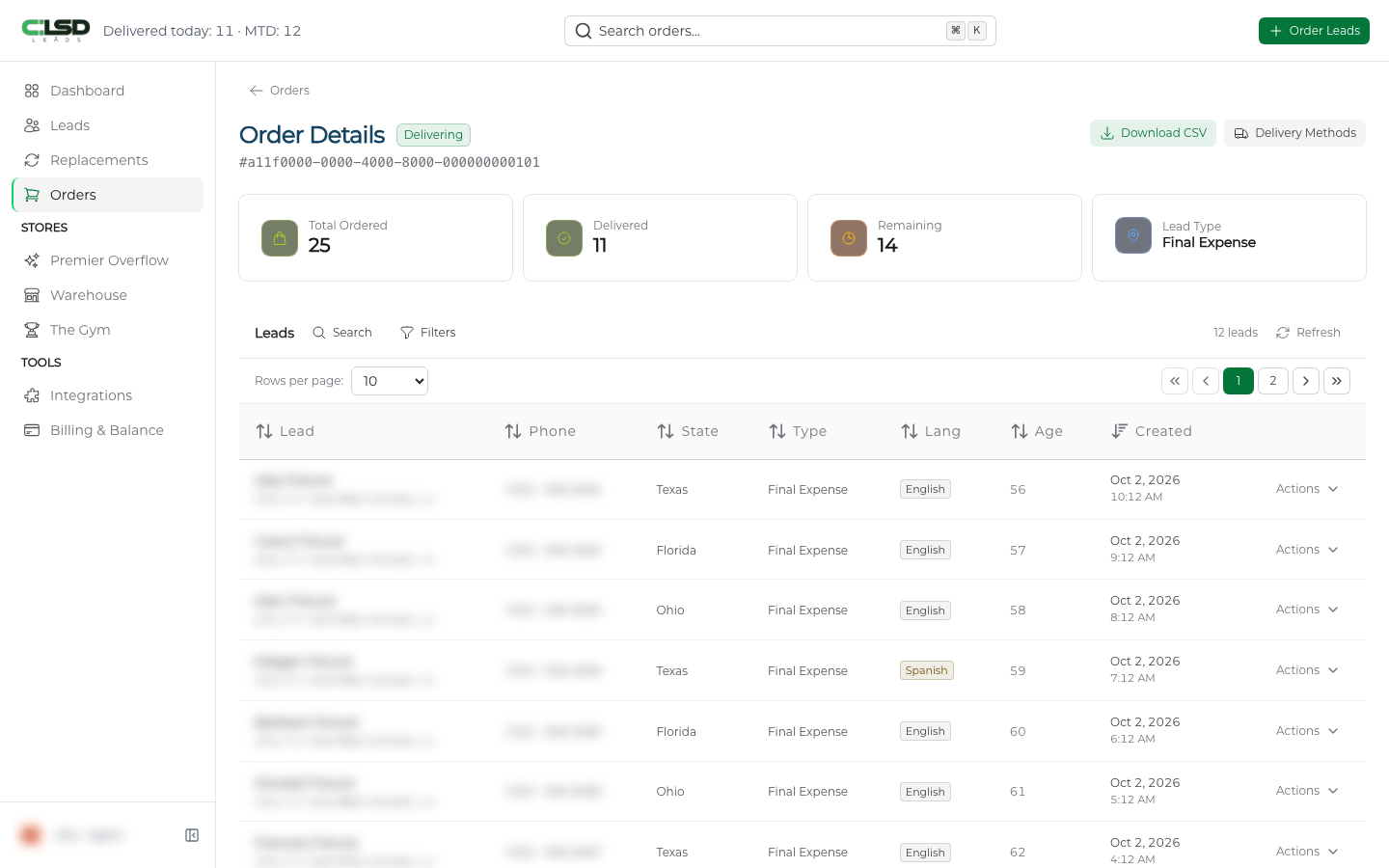
Click Actions and choose View Order to open the order page. Four cards sit at the top. Total Ordered, Delivered, Remaining and Lead Type. Below them is every lead delivered on this order so far. The same leads also appear on your Leads page, so you can work them from either place. See Viewing and exporting your leads.
When the order is done
The order ends when you have received exactly the number of leads you ordered. The chip changes to Fulfilled, and the date you got the last lead shows under the order date. Remaining on the order page reads 0.
Warning
If a lead you received does not meet our standards, you have seven days from delivery to ask for a replacement. See The seven day replacement window.
Frequently asked questions
Can I stop leads for a while?
Yes. You picked the date your order starts, and you can also pause any time. While an order is paused no leads arrive, and the status chip reads Paused. When you resume, delivery picks up where it left off. The steps are in Pausing and resuming an order.
My order is paid. Why has nothing arrived?
Check the status chip on Orders. If it reads Scheduled, the start date you picked has not come yet, and nothing arrives before then. Once it reads Delivering, leads arrive as they are generated over the days that follow.
Where do the leads show up?
They show up in three places. They go to the delivery method you chose at checkout, they appear on the order's own page under the four count cards, and they appear on your Leads page.
Will I get more leads than I ordered?
No. An order receives exactly its quantity. When Remaining reads 0 the chip changes to Fulfilled and the order is done.