The Gym
What The Gym is, what membership includes, and how you work and export leads once you join.
5 min read
Before you start
- A saved card, or one ready to enter on the join screen
- An insurance license, since joining confirms you are a licensed agent, agency or producer
Tip
Work leads inside the Gym without exporting them, since viewing and opening a lead never counts toward the daily cap.
The Gym is a monthly membership that gives you access to our whole aged lead pool. This article covers what it is, what you see today, and how a member uses it once it opens.
Where it is today
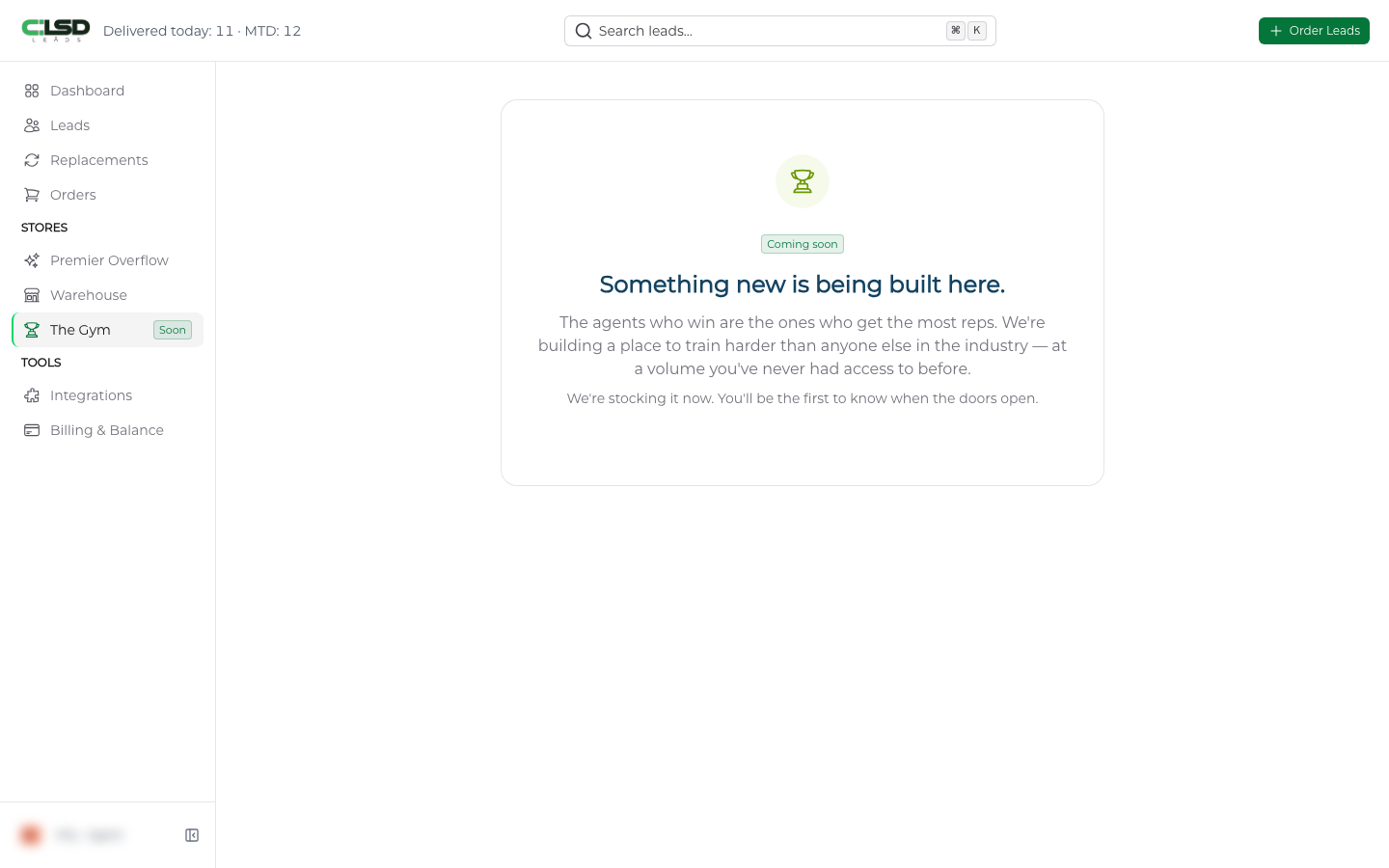
In the left sidebar under Stores, The Gym carries a Soon badge, and opening it shows a Coming soon badge over a page headed Something new is being built here. We are stocking it now, and the badge drops the day the doors open. Everything below describes the member experience as it is built.
What goes into the Gym
Leads that age past the Warehouse's oldest band leave the stores and land in the Gym. Membership is access to that whole pool for as long as you stay a member. You are not buying individual leads.
Important
Gym leads are not exclusive. Other members may be shown, open and work the same lead you are working, at the same time. The Exclusivity Policy does not apply to the Gym.
Leads are sold as is. The join screen states that we do not guarantee the outcome, conversion, or success of any lead. See The lifecycle of a lead for how leads get there.
Joining
Step 1. Open the join screen
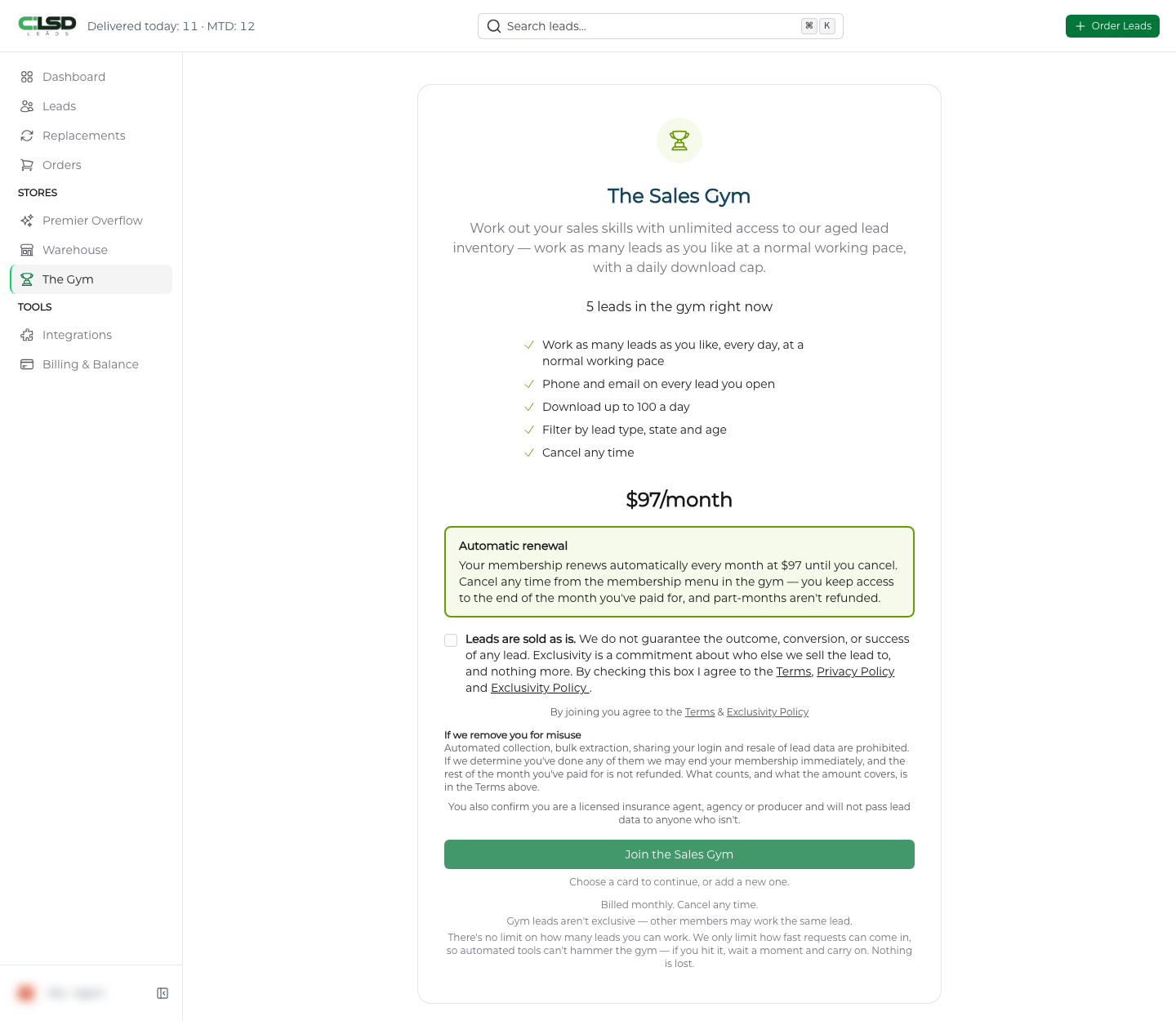
Open The Gym from the sidebar. The join screen, headed The Sales Gym, shows the monthly price, and the number of leads in the Gym once there are any.
Step 2. Read the renewal terms
Read the Automatic renewal box. Your membership renews every month at the price shown until you cancel.
Step 3. Check the consent box
Check the consent box. It begins Leads are sold as is. and records your agreement to the Terms, Privacy Policy and Exclusivity Policy. Below the box, the screen says that by joining you agree to the Terms and Exclusivity Policy, that you confirm you are a licensed insurance agent, agency or producer, and under If we remove you for misuse, what happens to the rest of a paid month.
Step 4. Pick a card
Under Payment method, pick a saved card or add one. The button stays disabled until you do.
Step 5. Join
Click Join the Sales Gym. If the box is unchecked, the screen asks you to agree to the terms first.
Warning
Your card is charged when you click, and we email you a confirmation with the price and renewal terms. Keep that email.
Working leads
As a member you see a Member chip with your renewal date, the exports meter (Today's exports, with the number you have used and your daily cap beside it), filters and the lead table.
- The three filter menus read All states, All ages and All types until you narrow them. On a phone they sit behind a Filters button. A search button at the top (it reads Search the gym…, or names the number of leads) opens the search, which matches the name, the state, or the phone number.
- The table shows Name, State, Age and Coverage asked. Click View on a row to see the phone number, email and any extra answers the person gave.
- Next › and ‹ Previous page through the queue, which is ordered for you and cannot be sorted by column.
Note
There is no limit on how many leads you can view, open or work. We only limit how fast requests can come in, so automated tools cannot hammer the Gym. If you hit that limit, wait a moment and carry on.
Exporting leads
Exporting takes a lead away as a CSV file, and it is the one thing with a daily cap. The cap is shown on the join screen and on the exports meter, which also names the time zone it resets in at midnight.
Step 1. Select the leads
Click the circle on a row to select it, or the circle in the table header, which selects as much of the page as your remaining cap allows. Selections carry across pages.
Step 2. Export
Click Export selected at the bottom, or Export on a single row.
Step 3. Check the meter
The file downloads and the meter updates. Leads you already exported are skipped and do not count again. A selection larger than your remaining cap is refused as a whole, counting those repeats, and the message tells you how many you have left.
At the cap, unselected rows disable until it resets, and you can still open and work every lead.
To stop your membership, see Cancelling your Gym membership. Billing details are in Billing and balance.
Troubleshooting
Why does The Gym carry a Soon badge?
It has not opened yet. We are stocking it now, and the badge drops the day the doors open. Until then, opening The Gym shows a Coming soon badge over a page headed Something new is being built here.
I hit a limit while browsing
You hit the request limit. We limit how fast requests can come in so automated tools cannot hammer the Gym. Wait a moment and carry on. You can still view, open and work as many leads as you like.
The rows are grayed out and I cannot select them
You have reached your daily export cap. Unselected rows disable until the cap resets at midnight in the time zone the exports meter names. You can still open and work every lead in the meantime.
My export was refused
The selection was larger than your remaining cap. A selection over the cap is refused as a whole, and repeats you already exported count toward that check even though they would be skipped. The message tells you how many you have left. Select fewer rows and try again.