Buying Premier Overflow leads
How the Premier Overflow store works, from picking an age band to downloading the leads you bought.
5 min read
Before you start
- A saved card, or one ready to enter at checkout
- A place for the leads to go (your CRM, your inbox or a Google Sheet)
Tip
Pick the state on the map and then use the Add all button when you want everything in it.
Premier Overflow is the first store under Stores in your sidebar when you are signed in, and at /overflow on the site when you are not. This article covers what the leads are and how to buy them, through to the order page and the CSV.
What Premier Overflow is
When our ad engine produces more leads than Premier orders need, the extras land here. Every lead in the store came from a Premier order and was never delivered to another agent through a Premier order. Once you buy one it is exclusive to you for the period set out in our Exclusivity Policy.
Important
Leads are sold as is. We do not guarantee the outcome, conversion, or success of any lead, and the checkout says so before you pay.
How the store is organized
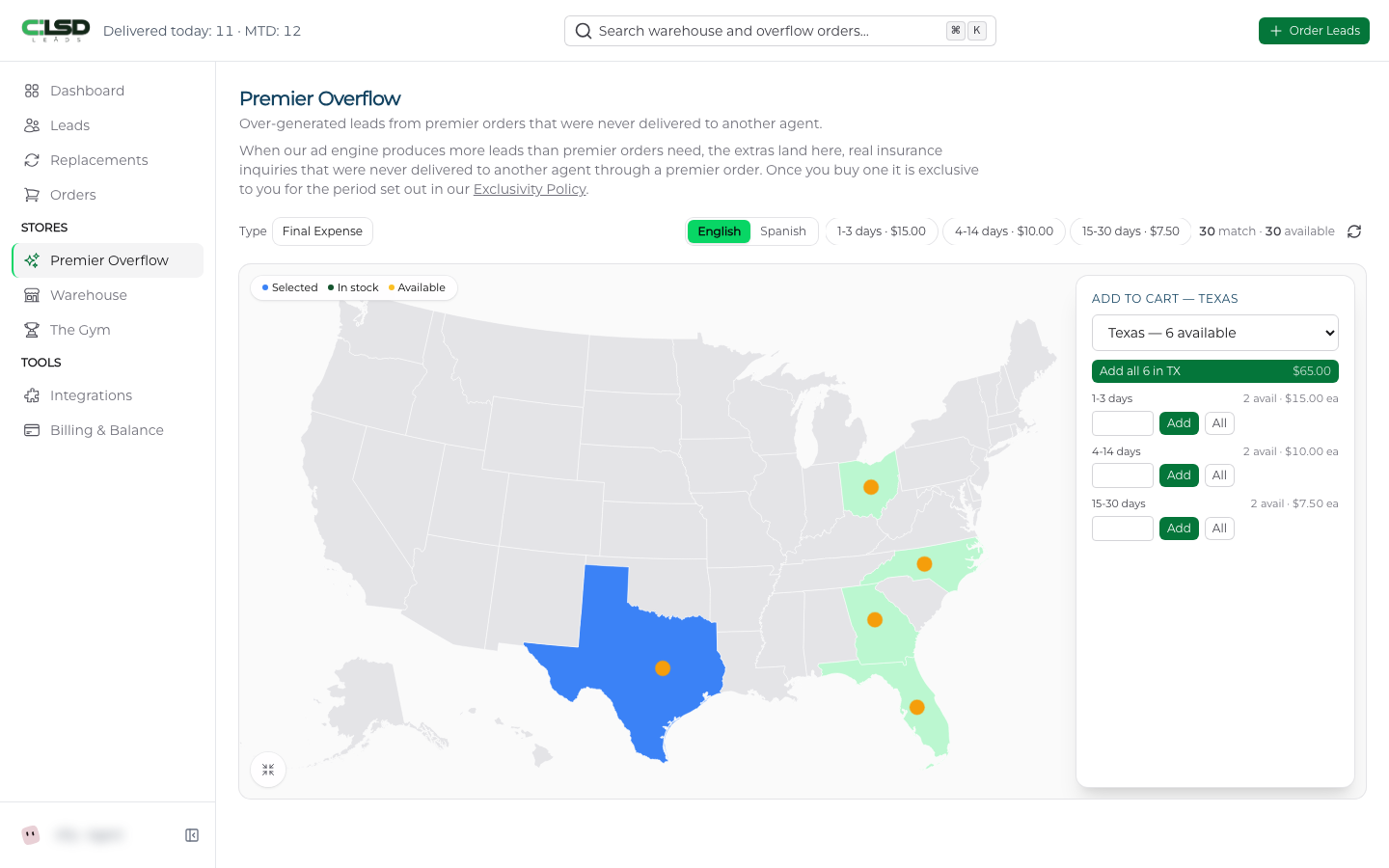
- Type picks the lead type.
- English and Spanish switch the language. Switching with a full cart clears it, and the store asks first.
- The age chips are the bands. Right now they are 1-3 days, 4-14 days and 15-30 days, with the price per lead beside each one. Click a chip to filter to that band.
Price is set per band. See How aged lead pricing works.
Adding leads to your cart
Step 1. Pick a state
Click a state on the map, or pick it from Select a state... in the Add to cart panel.
Step 2. Add a band or the whole state
For each band in that state, type a quantity and click Add, or click All for every lead in the band. The Add all button at the top takes the whole state. Its label names the state and the count.
Step 3. Review the cart
Your cart appears below the map, one card per state. The cart belongs to one lead type, so check out or clear it before switching.
Warning
The cart bar shows Holding your leads for with a countdown. The hold is ten minutes, refreshed whenever you add or remove leads or open checkout. If it runs out the leads go back into the store. You can hold up to 500 leads at once, counted across Premier Overflow and the Warehouse together.
Checking out
Step 1. Open the checkout drawer
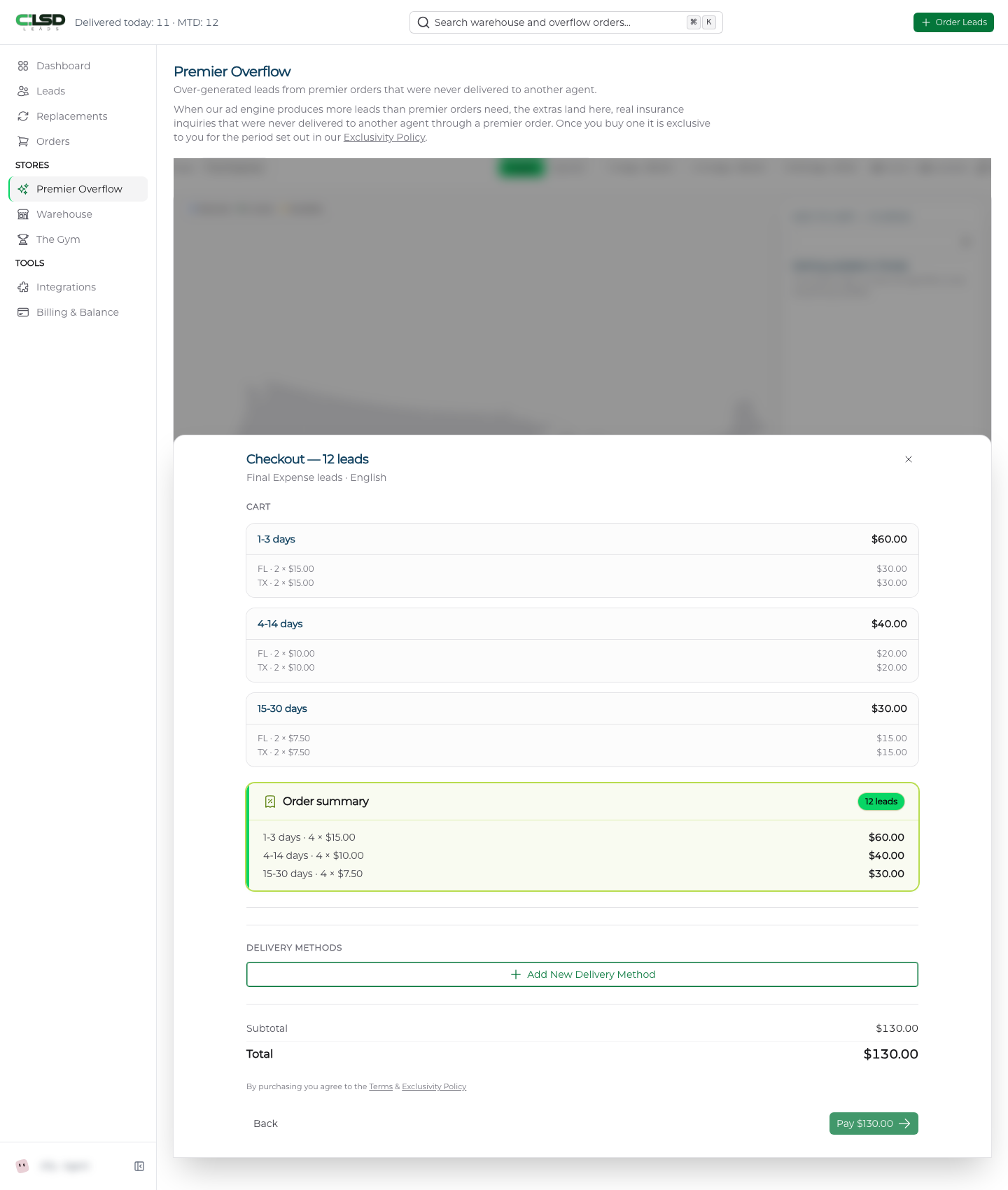
Click the checkout button on the cart bar. It names the lead count and the subtotal. In the drawer, Cart groups your picks by band, then by state.
Step 2. Pick payment and delivery
Under Payment Method choose a saved card or add one. Under Delivery Methods pick where the leads go. You can pick more than one.
Note
You can also buy without signing in. The store asks Who should we deliver to?, takes your name, email and phone, and sends the leads by email and to a Google Sheet.
Step 3. Pay
Click the pay button, which shows your total. If you did not pick a saved card, a Complete payment step opens. Enter your card details, check the box that begins Leads are sold as is., and click the pay button again. The box records your agreement to the Terms, Privacy Policy and Exclusivity Policy.
After you pay
These leads already exist, so your purchase sends them. After payment you see Order placed and the leads head to every delivery method you selected. See Connecting Google Sheets for the Sheets setup.
Open Orders in the sidebar. Your purchase shows Overflow in the Status column, above the status chip. Click Actions on the row for View Order, Download CSV once the order is paid, or Delete Order while it is unpaid.
The order page is headed Aged Lead Order, the same page a Warehouse purchase uses. Download CSV there gives you one row per lead with the same columns as the Google Sheets delivery. An unpaid order shows Awaiting payment and no leads, and the download button is there but disabled until you pay. If payment does not arrive within 2 hours we cancel the pending order and the leads return to the store.
Troubleshooting
The download button on the order page is disabled
The order has not been paid. An unpaid order shows Awaiting payment and no leads, and Download CSV stays disabled until the payment goes through.
My pending order disappeared
Payment did not arrive within 2 hours, so we cancelled the pending order and the leads went back to the store. Build the cart again and check out.
My cart emptied on its own
The hold ran out, or you switched the language. The cart holds your leads for ten minutes, refreshed whenever you add or remove leads or open checkout, and when the countdown reaches zero the leads go back into the store. Switching the language with a full cart clears it too, though the store asks first.
How is Premier Overflow different from the Warehouse?
The two stores work the same way. Premier Overflow sells the younger bands, the Warehouse sells the older ones, and Buying aged leads in the Warehouse covers that store.