Finding your orders
Where every order lives, how to narrow the list, what each row and status means, and what the Actions menu lets you do.
5 min read
Before you start
- An order on your account, paid or still unpaid
Tip
The order number is under the Order Details heading when you open an order, and in your confirmation email.
Everything you have bought from CLSD lives on one page, Orders in the left sidebar. Premier orders and aged lead orders appear in the same list, newest first. If you have a weekly subscription, the order it creates each week appears here like any other, and the subscription itself is managed from Billing & Balance.
Premier, Overflow, and Warehouse
Each row names the store the order came from, just above its status chip in the Status column.
| Label | What it is |
|---|---|
| Premier | An order for fresh leads, generated for you after your start date. It receives exactly the quantity you bought. An approved replacement still arrives, because the lead it replaces no longer counts. |
| Overflow | An order from Premier Overflow, leads from Premier orders that were never delivered to another agent through a Premier order. |
| Warehouse | An order of aged leads from the Warehouse. |
Narrowing the list
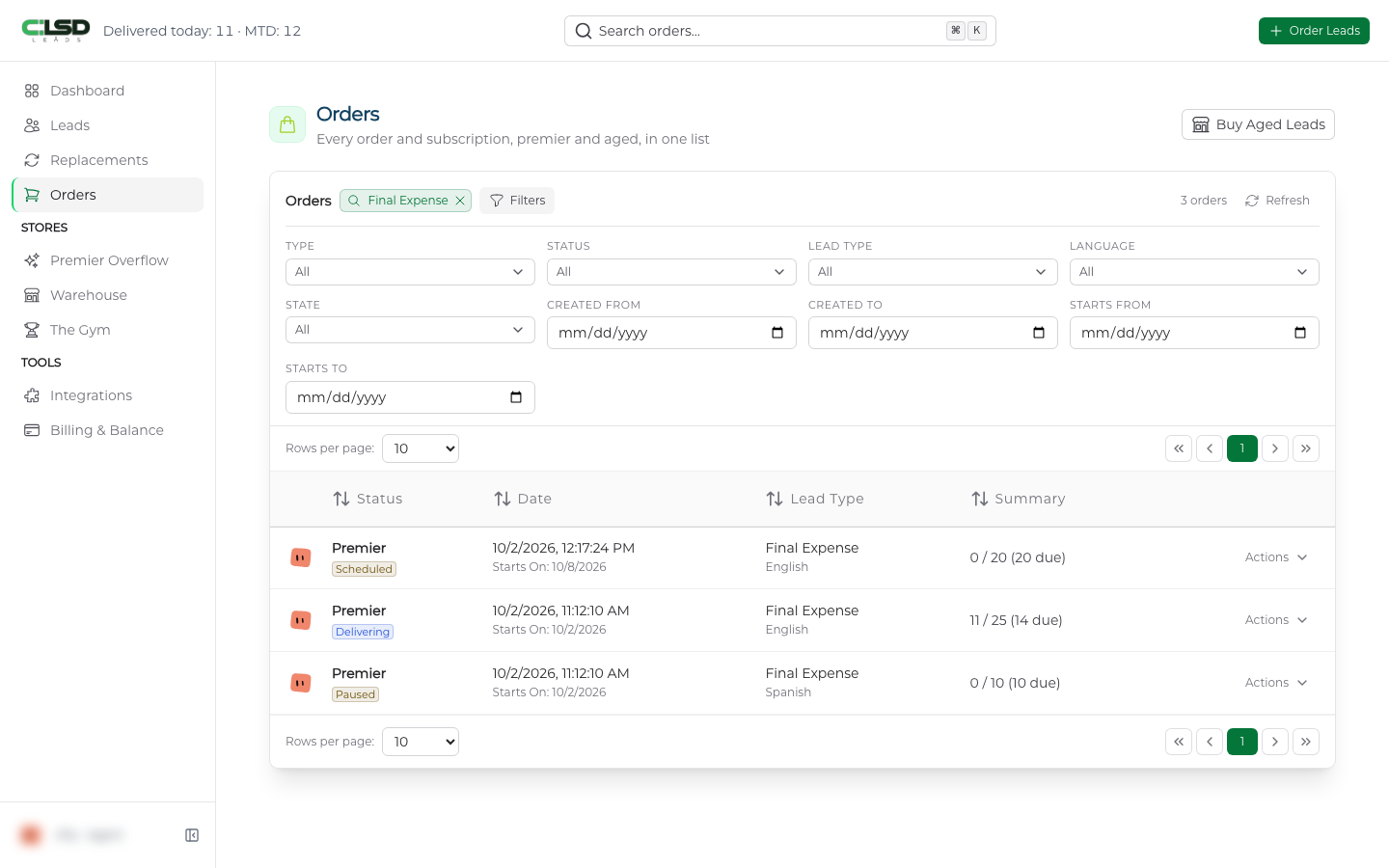
Click Filters above the table. You can narrow by Type (the store), Status, Lead Type, Language, State, and two date ranges, Created From and Created To for when the order was placed, and Starts From and Starts To for the start date. Clear removes every filter at once.
To search, click Search above the table or press ⌘K on a Mac and Ctrl K elsewhere. Type a term and choose Filter this list for it. The term shows as a chip in place of the Search button while it is active, with an x to remove it.
Reading a row
- Status stacks the store name, Premier, Overflow, or Warehouse, over a status chip. A scheduled pause or resume shows under the chip as Pauses or Resumes with the time.
- Date is when the order was placed. Under it a Premier order shows Starts On before it begins, or Fulfilled with the date once you have every lead.
- Lead Type shows the type with the language under it.
- Summary reads like 12 / 50 (38 due), leads received out of leads ordered and how many are still due. A finished order reads 50 / 50 (0 extra). Unpaid orders show (unpaid), and aged orders show the lead count.
| Status | Meaning |
|---|---|
| Unpaid | A Premier order not yet paid for. |
| Pending | An aged order not yet paid for. |
| Scheduled | Paid, and waiting for its start date. |
| Delivering | Started and still receiving leads. |
| Paused | Delivery is paused. |
| Fulfilled | A Premier order with every lead delivered. |
| Paid | An aged order that is complete. |
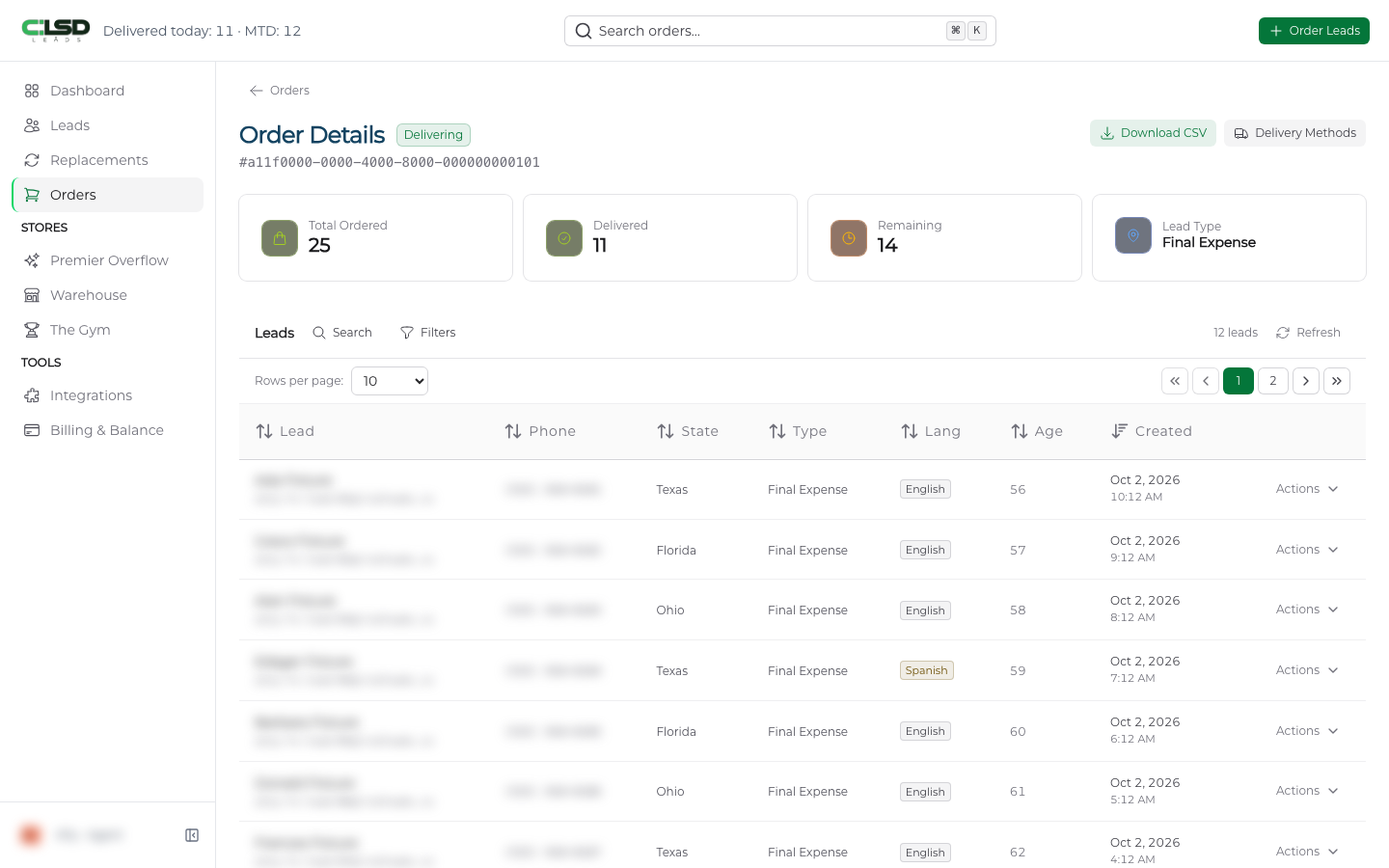
States, delivery methods, exclusivity and price are on the order itself. View Order opens Order Details, with the status, the order number, four counts (Total Ordered, Delivered, Remaining, Lead Type), and every lead on the order. Download CSV exports the leads.
Note
The order number on Order Details is the full one. Your confirmation email shows its first eight characters, so the two match at the start.
Things you can do to an order
Click Actions at the end of any row. The menu depends on the store and the state.
Premier orders. View Order, Edit Order until the order is paid, Pay Now for an unpaid order, See Invoice and See Receipt once the order is paid (an older order paid outside the current billing system may show neither), then, while the order is running, the pause and resume entries that fit its state. A delivering order shows Pause Now and Schedule Pause, a paused one shows Resume Now and Schedule Resume, and once a change is scheduled the schedule entry becomes Cancel Scheduled Pause or Cancel Scheduled Resume. See Pausing and resuming an order. An order created by a subscription also has See Subscription, which narrows the list to that subscription's orders.
Overflow and Warehouse orders. View Order, Download CSV once the order is paid, and Delete Order for an unpaid order.
Warning
Delete Order on an unpaid Overflow or Warehouse order returns the leads to the store, so they are no longer held for you.
Frequently asked questions
Where is the order number?
Open the order with View Order. The number is on the Order Details page, and the first eight characters of it are in your confirmation email. The Orders list itself does not show it.
Why does the Summary say (unpaid)?
The order was placed but has not been paid for yet, so nothing can be delivered on it. Click Actions and choose Pay Now. Until it is paid you can also Edit Order.
Where do I manage my weekly subscription?
The orders a subscription creates sit in this list like any other, and See Subscription in their Actions menu narrows the list to that subscription's orders. The subscription itself is managed from Billing & Balance. See Billing and balance.
Where do I buy more leads?
Order Leads at the top of any page opens the Premier order form, and Buy Aged Leads on the Orders page takes you to the Warehouse. See Placing an order and choosing a start date.