Weekly aged lead subscriptions
How a weekly Warehouse subscription is activated, what arrives each week, and how to pause or cancel it.
4 min read
Before you start
- An activation link from our team
- A card to pay the first week
Tip
Pause the plan when you only need a break, since cancelling cannot be undone.
A weekly aged lead subscription sends you up to a set number of Warehouse leads each week at one price per lead. Our team sets it up for you, and you switch it on by paying for the first week.
How it starts
Our team builds the plan with you (lead type, language, states, leads per week, price per lead, and delivery methods) and sends you an activation link. Opening it shows Activate Your Subscription.
Step 1. Check the summary
Check Account and Subscription Summary. The summary lists Lead Type, Language, Exclusivity, Leads / week, Price / lead, States, and Max weekly, which is the most you can be charged in one week.
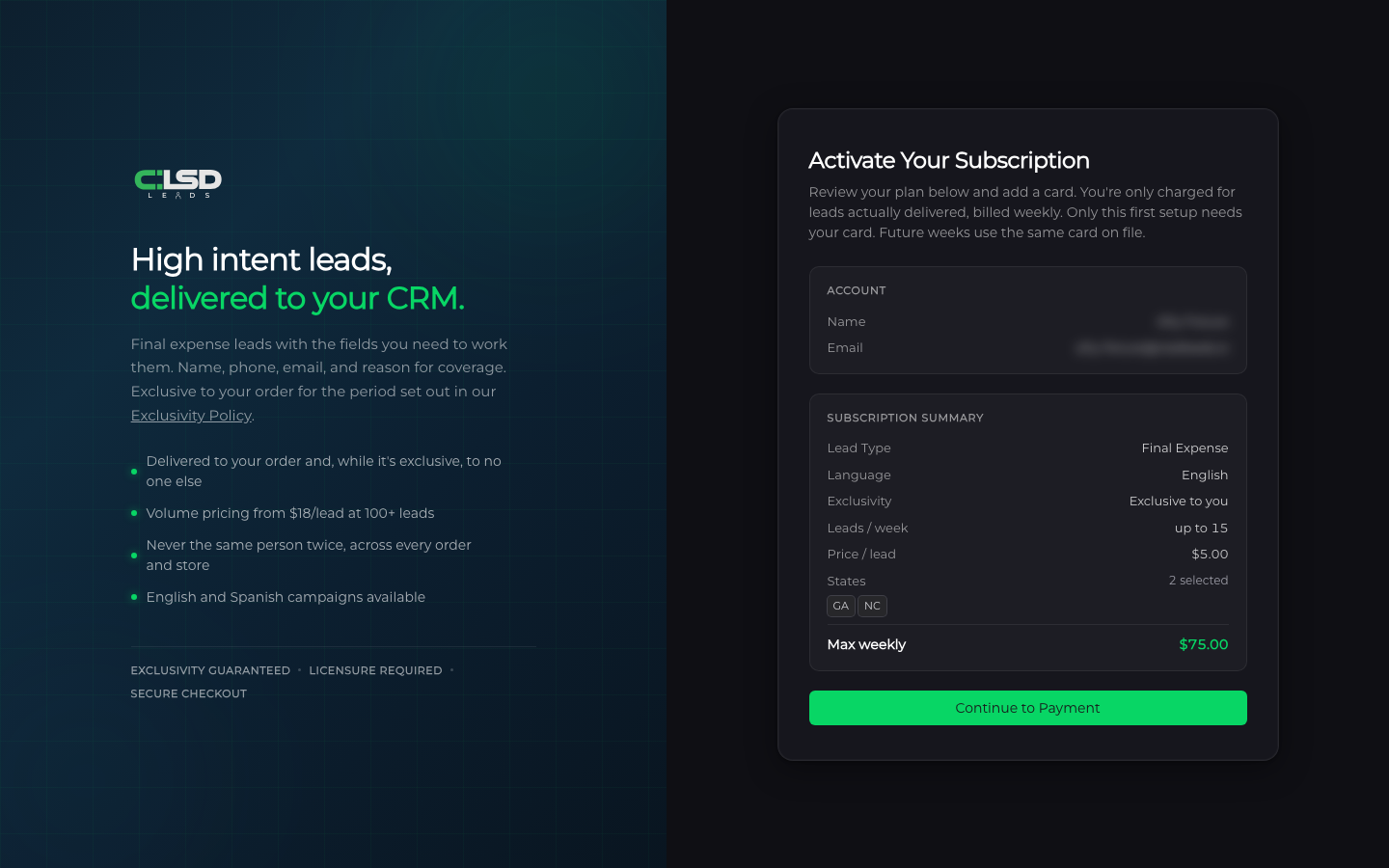
Step 2. Continue to payment
Click Continue to Payment. If no leads match your plan, the page says No aged leads are available for these criteria right now. Please try again later. and the payment step does not open.
Step 3. Check what is due today
The payment step shows Due today. That is this week's leads at the price per lead. If fewer leads are available than your weekly number, you are charged only for the ones you get.
Step 4. Pay
Enter your card and click the pay button, which shows the amount due.
You see Subscription Active! when it goes through. The card you used is saved and charged for each following week, so only the first week needs you to enter it.
What arrives each week
Each week the subscription picks up to your weekly number of aged leads in your states, lead type and language, charges your saved card for the number it picked, and sends them to the delivery methods on the plan. These leads already exist, so the purchase itself sends them.
Each week shows as its own order on Orders, with Warehouse (or Overflow, if that week's leads came from the younger bands) in the Status column, above the status chip. Each one has View Order and Download CSV under Actions, the same as a Warehouse purchase. See Finding your orders.
A week with no matching leads in stock is skipped with no charge. Each charge appears under Invoice History on Billing & Balance.
Each lead carries an exclusivity period, stated in the Exclusivity Policy.
Managing it
Open Billing & Balance in the sidebar. Your plan appears under Aged-Lead Subscriptions with its status. It reads Pending card until you pay the first week, then Active or Paused. Once you cancel it reads Cancelled and moves to the Cancelled tab at the top of the page. The card shows the lead type and language, leads per week, price per lead and the number of states. The pause, play and X buttons on the card are Pause, Resume and Cancel.
- Pause stops the weekly charges. Leads you already paid for still deliver. Nothing new is picked or billed until you resume.
- Resume starts the weekly clock again from that day. The next charge comes a week later, so no new leads arrive until then, and you are not charged for the time it was paused.
- Cancel ends the subscription. Leads already paid for still deliver, and no future weeks are billed. The page asks you to confirm first.
Important
Cancelling is permanent, and leads already delivered are not refunded. See Refunds.

Warning
If a weekly charge fails, the subscription is cancelled and no order is created for that week. Nothing tells you when this happens, so if a week goes by with no order, check the status on Billing & Balance. Contact support to set it up again. See Getting support.
Troubleshooting
The page says no aged leads are available
Nothing in stock matches your plan right now, so the payment step does not open. Try the link again later. Once leads match, Continue to Payment takes you through.
A week went by with no order
Two things can cause this. A week with no matching leads in stock is skipped with no charge, and the subscription carries on. A failed weekly charge is different. It cancels the subscription and no order is created. Check the status on Billing & Balance, and if it reads Cancelled, contact support to set it up again. See Getting support.
I was charged less than Max weekly
Fewer leads were available than your weekly number, so you were charged only for the ones you got. Max weekly is a ceiling. It is the most you can be charged in one week.