Pausing and resuming an order
How to stop leads for a while and start them again, now or on a schedule, and what a pause does to your delivery.
4 min read
Before you start
- A paid Premier order that has started and is not yet fulfilled
- The Orders page open in the left sidebar
Tip
Use Pause Now before a vacation, then Schedule Resume for the morning you are back.
A Premier order can be paused any time after it starts. Leads stop arriving while it is paused and continue when you resume, and you still receive every lead you ordered. This article covers pausing now, pausing on a schedule, resuming, and clearing a scheduled change.
Before you pause
Pause controls appear for a paid Premier order that has started and is not yet fulfilled. An order that is still Scheduled has nothing to pause yet, so the options are not offered until the start date. Aged orders deliver all at once, so they have no pause.
Warning
Every change to an order's pause state has to be at least six hours from every other change on the order, including one you have already scheduled, and the start date counts as a change. So you cannot pause an order in the first six hours after it starts, and once you pause or resume the next change has to wait six hours. A pause scheduled for Friday afternoon blocks any further change until six hours after it. If you try sooner, the window tells you the change has to be at least six hours from the last one.
Pausing now
Step 1. Open the Actions menu
Open Orders in the left sidebar, then click Actions on the order and choose Pause Now.
Step 2. Confirm the six hour lock
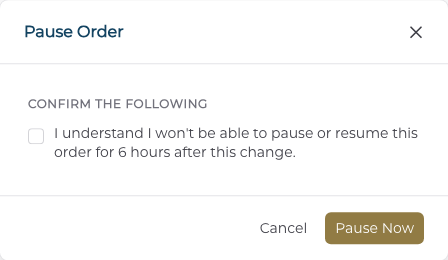
In the Pause Order window, check I understand I won't be able to pause or resume this order for 6 hours after this change.
Step 3. Pause
Click Pause Now. You will see Order paused, and the row's status chip changes to Paused.
Resuming
Step 1. Choose Resume Now
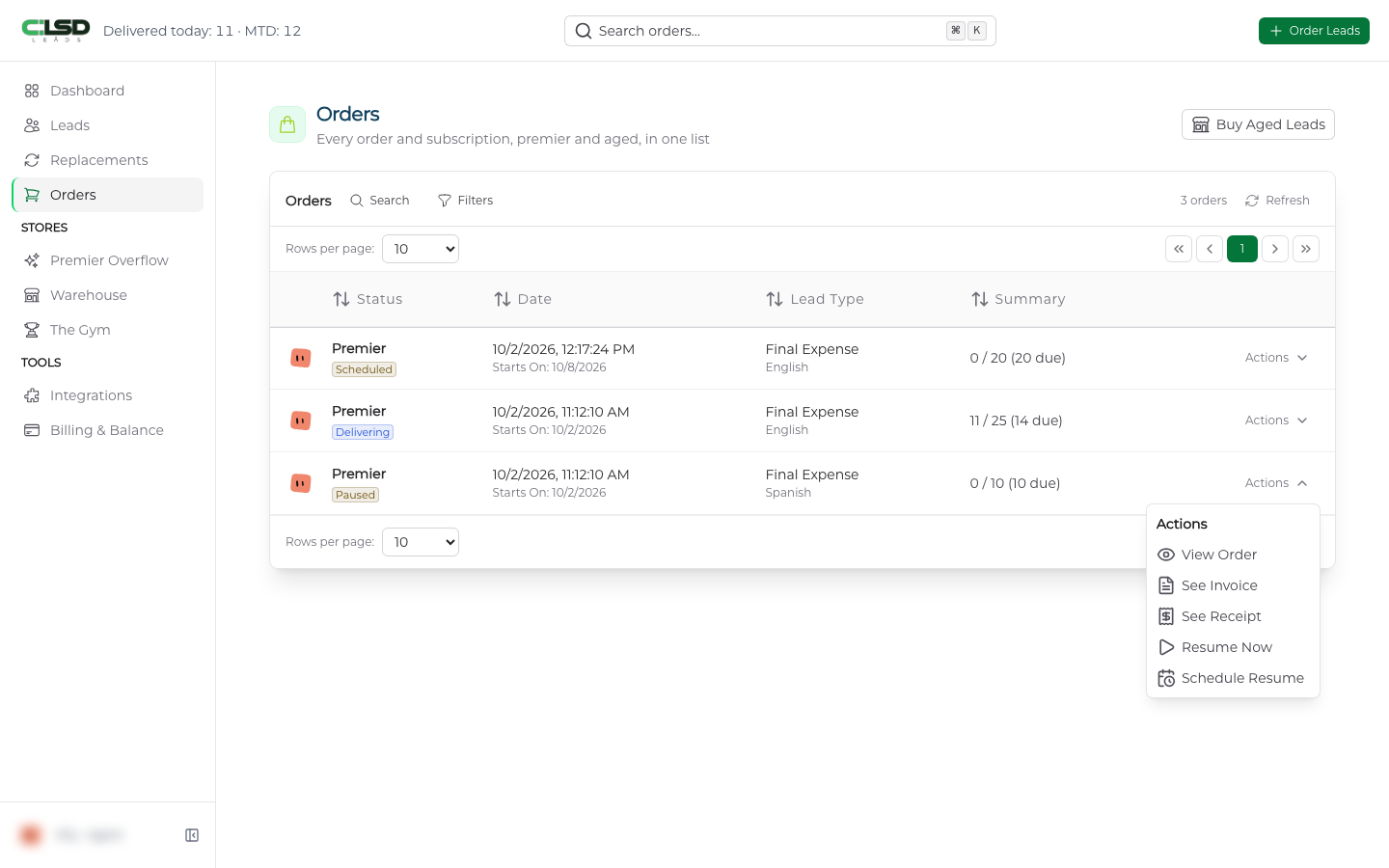
While an order is paused, Actions offers Resume Now and Schedule Resume. Choose Resume Now to restart delivery after you confirm.
Step 2. Confirm
Check the confirmation and click Resume Now. Delivery continues from where it left off until you have the full quantity.
Scheduling a pause or a resume
Step 1. Choose the scheduled option
Click Actions on the order and choose Schedule Pause on a delivering order, or Schedule Resume on a paused one.
Step 2. Pick the time
The Schedule Pause window adds a Pause at field for the date and time, shown in your own time zone. Schedule Resume asks for a Resume at time the same way. The time has to be at least six hours after the order's start date and after any earlier pause or resume, and the picker will not let you choose a time inside that window.
Step 3. Confirm
Check the confirmation and click the button carrying the same words. You will see Pause scheduled or Resume scheduled. Until it takes effect, the order carries on as it was, and the row shows Pauses or Resumes with the time under its status chip.
Note
You can have one scheduled pause at a time. Scheduling a new one replaces it, and the window asks you to confirm that as well.
Troubleshooting
I scheduled a pause or resume and changed my mind
Click Actions on the order and choose Cancel Scheduled Pause or Cancel Scheduled Resume. A Clear Scheduled Pause or Clear Scheduled Resume window opens with one button carrying the same words and no checkbox. Click it and you will see Scheduled change cleared. The order carries on as it was.
Pause Now is not in the Actions menu
The order has not started yet, has already been fulfilled, or is an aged order. Pause controls only appear on a paid Premier order that is delivering. An order still showing Scheduled gets the options once its start date arrives.
Do I lose leads while the order is paused?
No. While an order is paused, no leads are delivered to it. When you resume, delivery continues from where it left off until you have the full quantity. The paused time does not count against your order, so the finish moves out by however long you were paused, and the schedule does not speed up afterward to make up the time.
Does pausing the order pause my subscription?
Pausing the order does not pause the subscription it came from. The window asks you to confirm I understand my subscription will continue billing and generating new orders while this order is paused. To manage the subscription itself, see Billing and balance.