Creating an account and signing in
How to open a CLSD account, sign in with email, Google, or Facebook, reset a password, and what is already set up the first time you land on the dashboard.
4 min read
Before you start
- An email address you can open, or a Google or Facebook account
Tip
Check your spam folder if a confirmation or reset email does not show up.
This article covers opening a CLSD account, the ways you can sign in, resetting a forgotten password, and what is already in place the first time you land on the dashboard.
Creating an account
A CLSD account is free and does not need a credit card.
Step 1. Open the sign up page
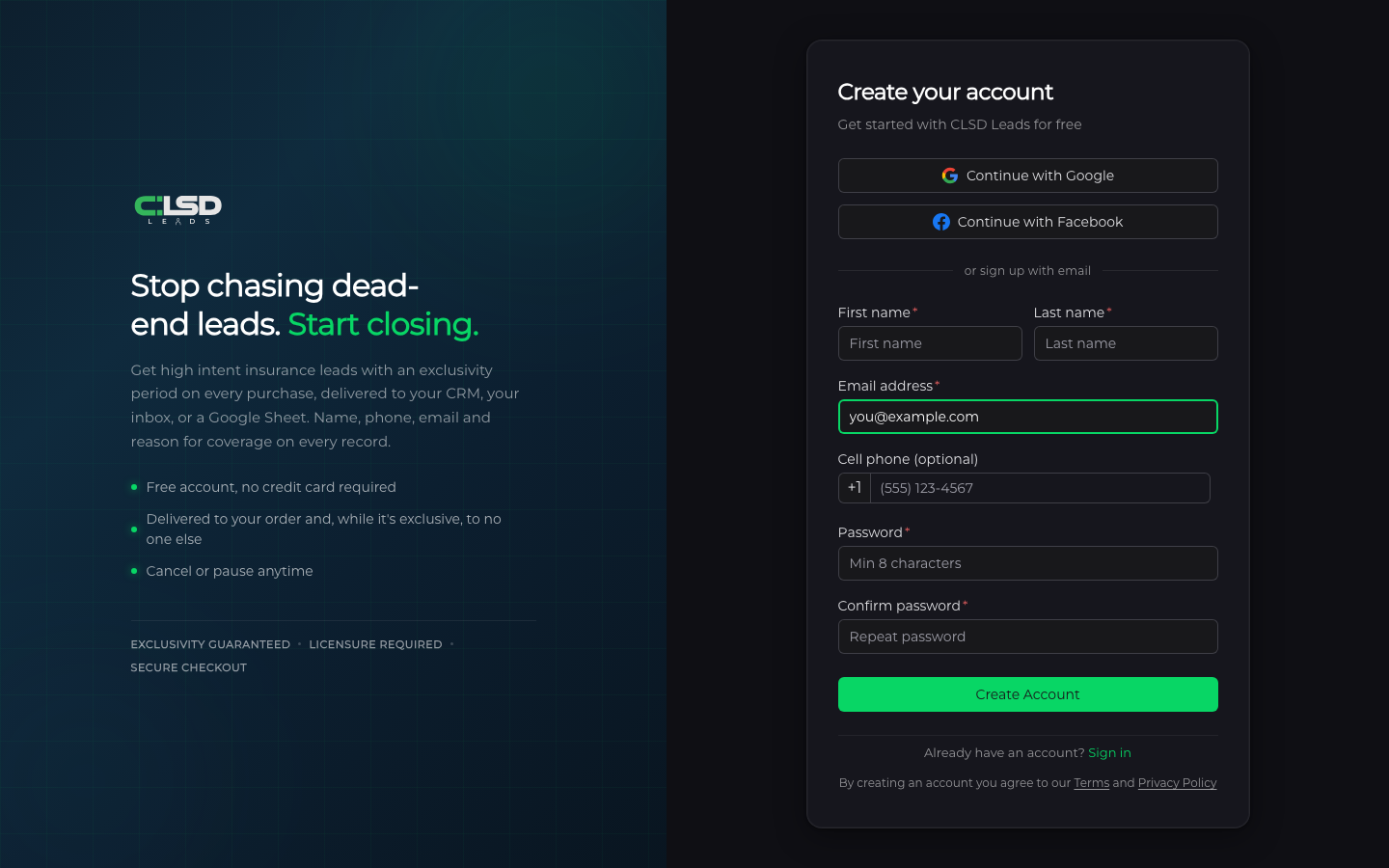
Go to the sign up page and look for Create your account.
Step 2. Pick how you want to sign up
Continue with Google or Continue with Facebook uses that account, and you can skip the rest of these steps. To sign up with email, fill in First name, Last name, Email address, Password, and Confirm password. Cell phone (optional) is up to you.
Your password has to be 8 to 20 characters and include at least one uppercase letter, one lowercase letter, one number, and one special character (any of ! @ # $ % ^ & *).
Step 3. Create the account
Click Create Account. By creating an account you agree to our Terms and Privacy Policy.
If we need you to confirm your email, you will see Check your email with the address you entered. Click the link in that email to activate the account. Once confirmed, use Sign in at the bottom of that screen.
Signing in
Step 1. Open the sign in page
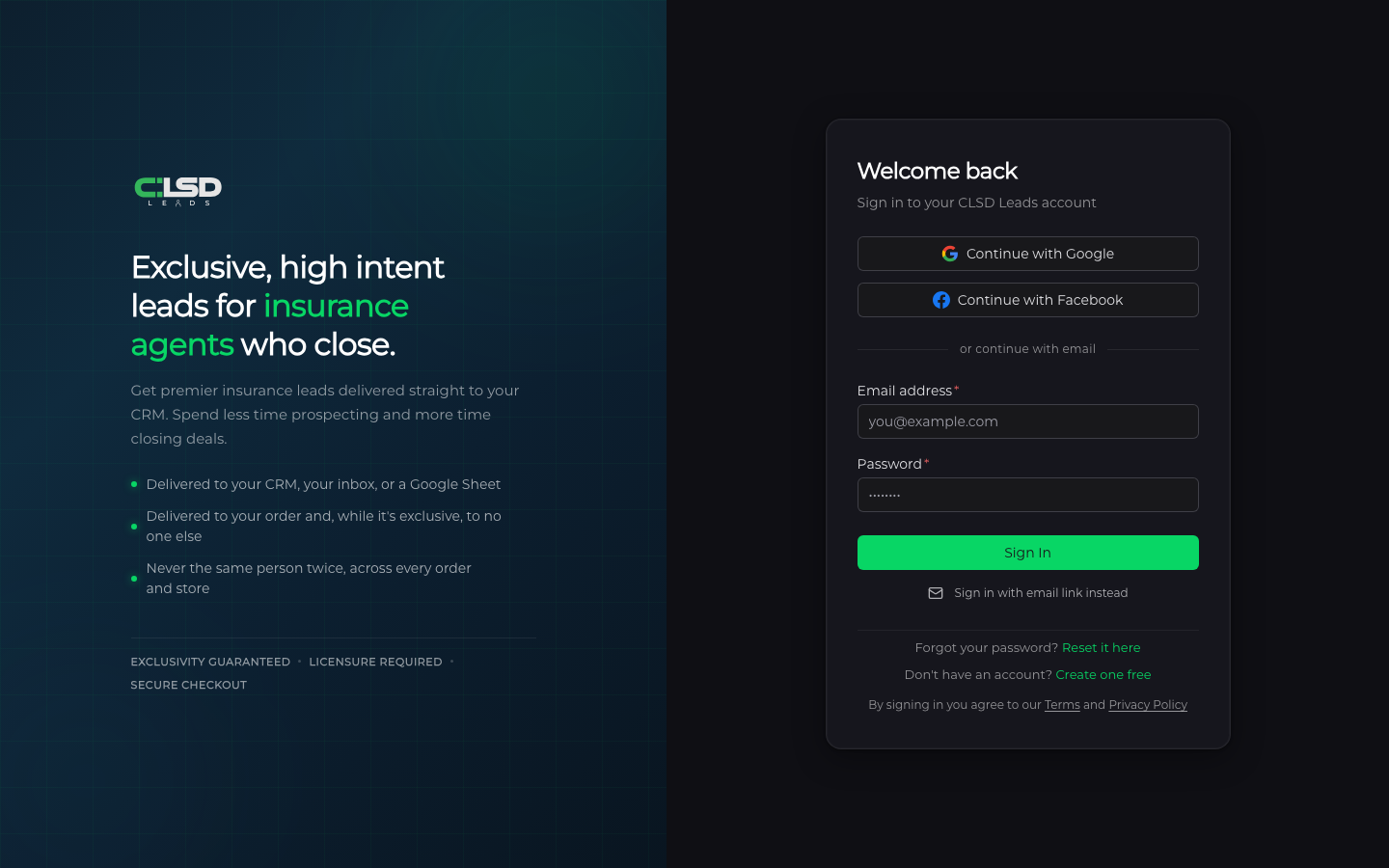
The card says Welcome back.
Step 2. Choose how to sign in
Click Continue with Google or Continue with Facebook, or enter your Email address and Password and click Sign In.
After signing in you land on the Dashboard, or on the page you were headed to.
Tip
If you would rather not type a password, enter your email address and click Sign in with email link instead. You will see Email Sent. Open the link on the device you want to use and you are in.
Resetting your password
Step 1. Ask for a reset link
On the sign in page, find Forgot your password? and click Reset it here.
Step 2. Enter your email address
The card changes to Reset your password. Enter your Email address and click Send Reset Link. You will see Email Sent.
Step 3. Open the link in the email
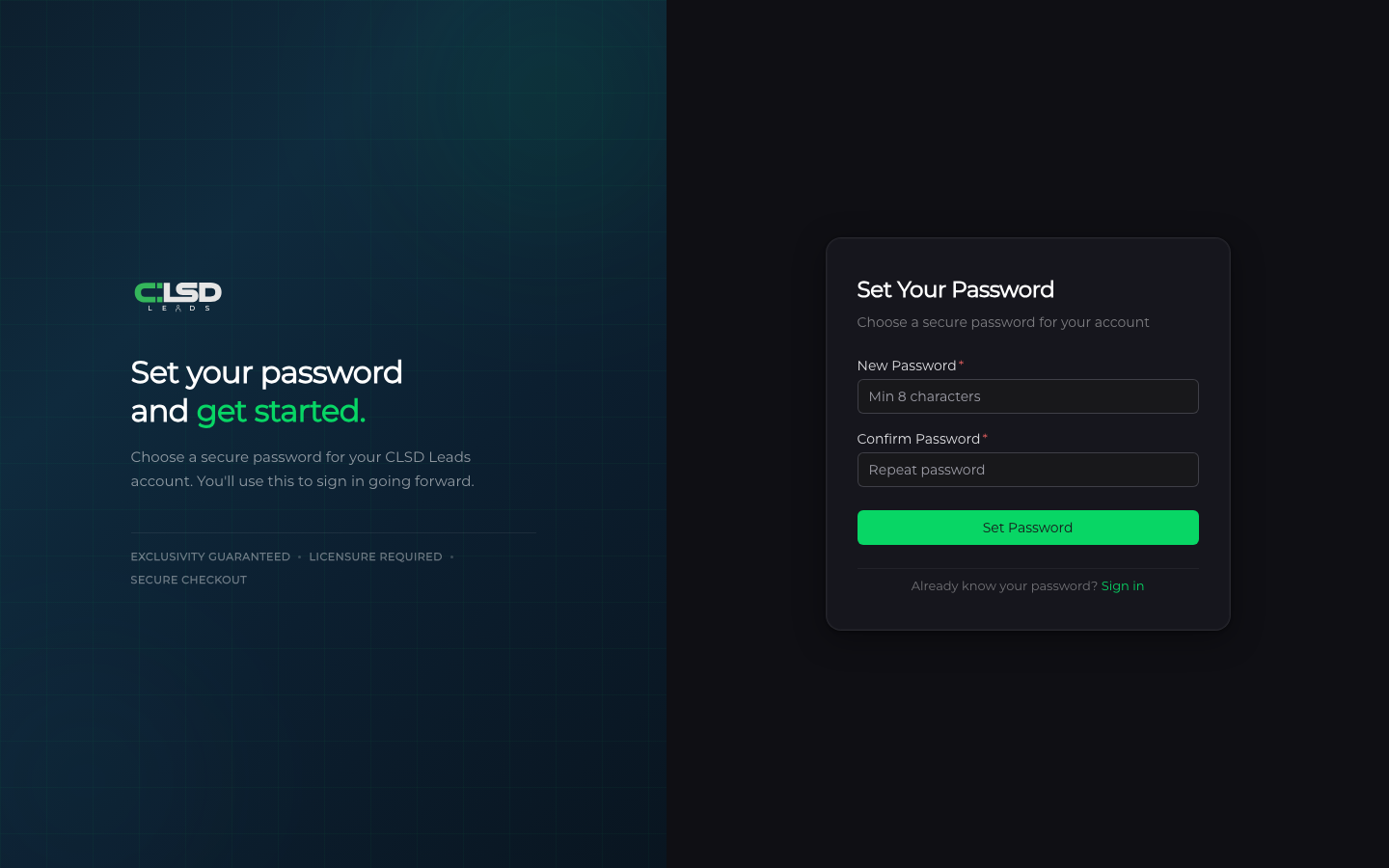
It takes you to Set Your Password.
Step 4. Set the new password
Enter a New Password of at least 8 characters, repeat it under Confirm Password, and click Set Password. You will see Password Set! and be taken into your account.
Your first time on the dashboard
There is nothing you have to finish before you can look around, and two things are already in place.
- Two delivery methods are ready. Email sends leads to the address you signed up with, and Google Sheets is a sheet created for you and shared with that same address. See Receiving leads by email and Connecting Google Sheets.
- Your dashboard starts out empty. No leads yet. is normal until your first order starts filling. A tour of the dashboard explains each panel.
Note
After you pay for an order, the Orders page shows a prompt titled Supercharge Your Sales with Sign Up for CLSD CRM, Connect Your Existing CRM, and Skip for Now. The prompt has no close button. Skip for Now closes it and changes nothing about your order. Sign Up for CLSD CRM opens the CRM signup in a new tab and leaves the prompt open behind it. The prompt comes back after each order you place through the order form. Connecting LeadConnector covers sending leads into a CRM.
Troubleshooting
The confirmation email never arrived
Check your spam folder, then click Resend confirmation email on the Check your email screen. Once confirmed, use Sign in at the bottom of that screen.
I signed in and landed on Check your email again
Your address was never confirmed. A fresh confirmation goes out each time this happens, so open the newest email and click the link.
The reset link says Link Expired or Invalid
Click Back to Sign In and request a new link from Forgot your password?.
I was invited to a team. Do I need a separate account?
Open the link from the invitation email. It asks you to sign in or create an account with the address the invitation went to, then joins you to the team. See Joining a team.