A tour of the dashboard
What each part of the dashboard shows, and where every entry in the left sidebar takes you.
4 min read
Before you start
- A CLSD account you are signed in to
Tip
Press ⌘K on a Mac or Ctrl K on Windows to search your leads, orders, and phone numbers from any page.
The Dashboard is the first page you see after signing in. This article explains what each panel on it means and where every link in the left sidebar goes.
The top bar
- Delivered today and MTD sit on one line next to the logo. They count the leads delivered to your Premier orders today and so far this month, in your local time. Leads you buy in a store are not counted here. On a phone the two names drop off and only the numbers show.
- The search bar searches your leads, orders, and phone numbers. Click it or press ⌘K (Ctrl K on Windows).
- Order Leads at the top right opens the order form from any page. See Placing an order and choosing a start date.
Note
If something needs your attention, such as a CRM connection that has expired, a notice appears at the top of the page with a button that takes you to the fix.
The dashboard page
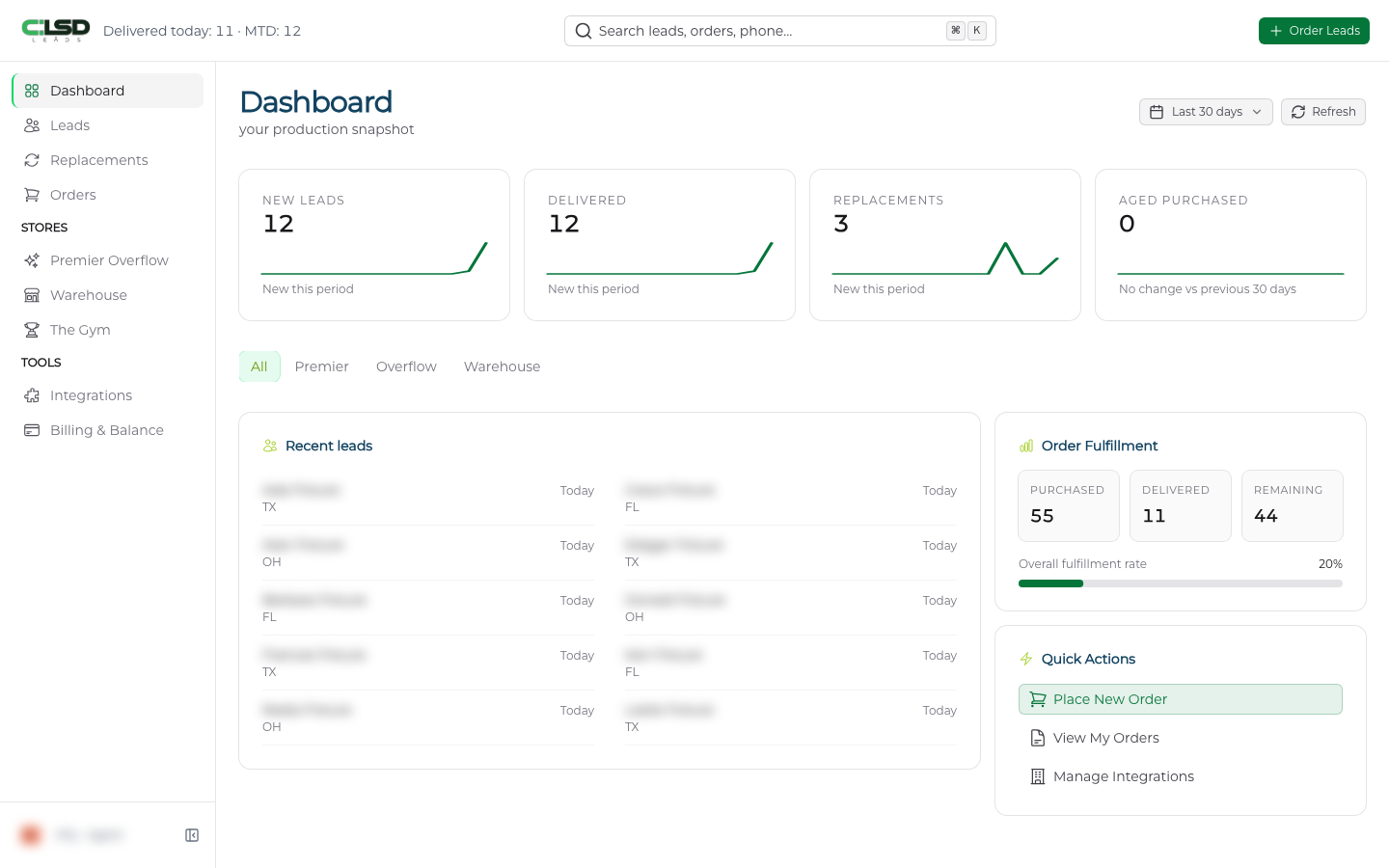
The heading reads Dashboard with your production snapshot under it.
The date button beside the heading sets the window for the whole page. It opens on Last 30 days. Pick Today, Yesterday, Last 7 days, Last 14 days, Last 30 days, or Last 90 days, or choose a Custom range on the calendar. Refresh reloads every panel.
Four tiles sit under the heading. New Leads, Delivered, Replacements, and Aged Purchased each show the count for your date range, a small trend line, and how the count compares with the previous period.
The All, Premier, Overflow, and Warehouse buttons narrow the tiles and the recent leads list to one kind of lead. Choosing a lead type explains the difference.
Recent leads lists your most recent leads for the scope and date range you picked, with the name, the state, and when each one arrived, as Today, 1 day, or a number of days.
Order Fulfillment covers your Premier orders. Purchased is how many leads you have paid for, Delivered is how many have reached you, and Remaining is what is still to come, with an Overall fulfillment rate bar underneath. Before your first paid order the card reads No active orders. with an Order Leads button. How leads arrive over time covers the schedule.
Quick Actions holds Place New Order, View My Orders, and Manage Integrations, shortcuts to the same places the sidebar goes. If you lead a team, My Team is there too, and it opens Team Performance.
The left sidebar
- Dashboard brings you back here.
- Leads lists every lead delivered on your Premier orders. See Viewing and exporting your leads.
- Replacements is where you request a replacement for a lead that qualifies and track the requests you have made. See Requesting a replacement.
- Orders shows everything you have bought. See Finding your orders.
Stores
- Premier Overflow sells leads from Premier orders that were never delivered to another agent through a Premier order. See Buying Premier Overflow leads.
- Warehouse sells aged leads. See Buying aged leads in the Warehouse.
- The Gym carries a Soon badge until it opens. See The Gym.
Tools
- Integrations is where you connect a CRM or a Google Sheet so leads can be delivered there. See Connecting LeadConnector and Connecting Google Sheets.
- Billing & Balance is your billing page. See Billing and balance.
If you lead a team, a Team section with Manage Team and Team Performance also appears. See Managing your team and inviting members.
Your account menu
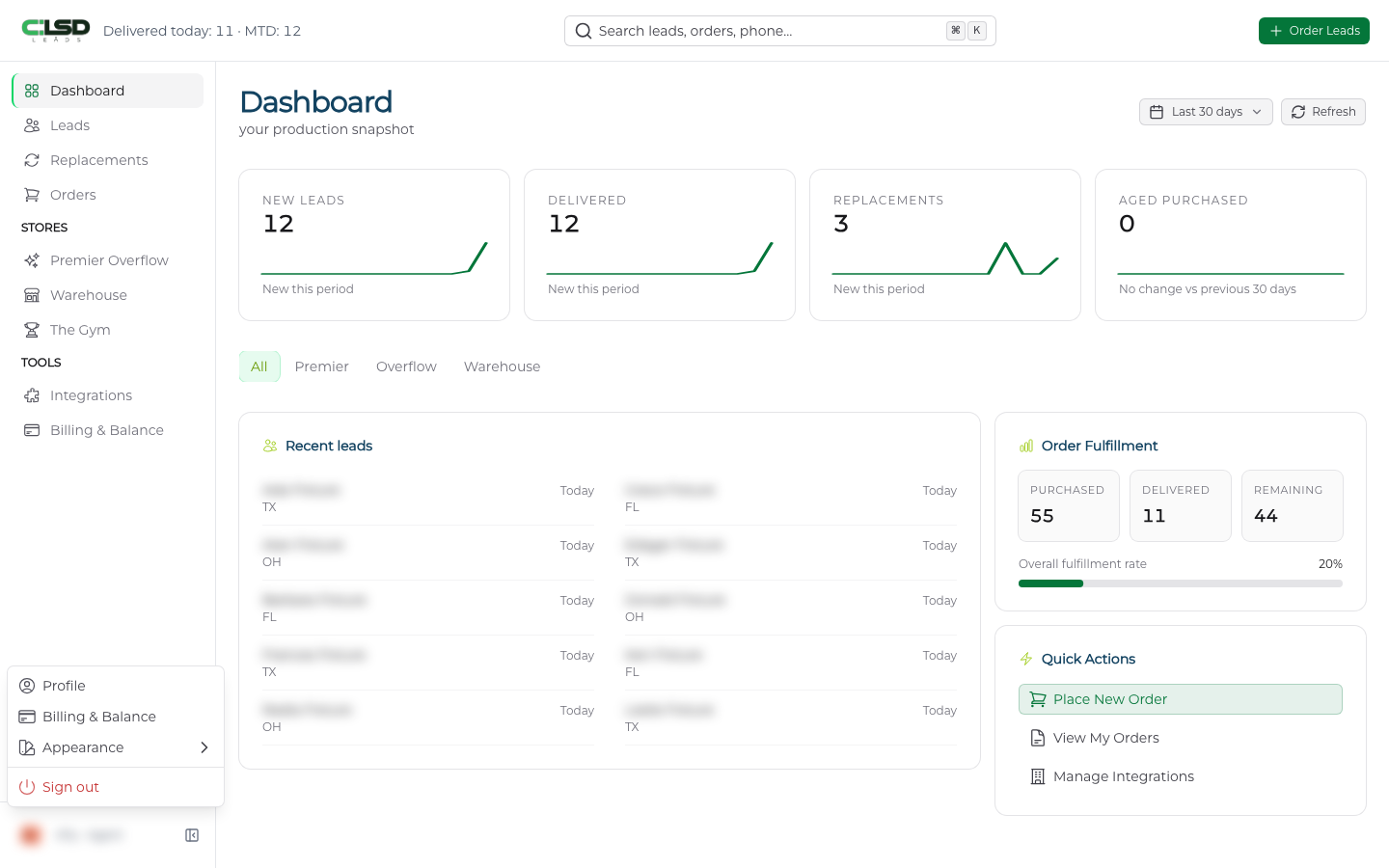
At the bottom of the sidebar, your first name shows with Agent beside it. Click it to open a short menu.
- Profile holds your name, email, and account settings. See Account settings.
- Billing & Balance is the same page as the Tools entry.
- Appearance switches between System, Light, and Dark.
- Sign out returns you to the sign in page.
The button beside your name collapses the sidebar to icons.
Frequently asked questions
Why does Recent leads say No leads yet?
Before you have paid for an order, Recent leads reads No leads yet. with an Order Leads button. That is normal. Once an order is paid but nothing has arrived for the range you picked, it reads Nothing in All for this period. instead.
Why does Order Fulfillment say Not applicable in this scope?
Order Fulfillment only covers Premier orders. When you have Overflow or Warehouse selected in the scope buttons, there is nothing for it to count, so it shows Not applicable in this scope. Click All or Premier to bring the numbers back.
Where is the Team section?
It only appears if you lead a team. Then the sidebar gains a Team section with Manage Team and Team Performance, and My Team shows up under Quick Actions.