Account settings
Where to update your name, photo, password and licensed states, change the appearance, and sign out.
3 min read
Before you start
- A CLSD account you are signed in to
Tip
Fill in your Agent NPN once on your profile and the order form carries it onto every order for you.
Your profile holds your name, photo, password and the states you are licensed in. This article covers each of those, plus the Appearance setting and signing out.
The user menu
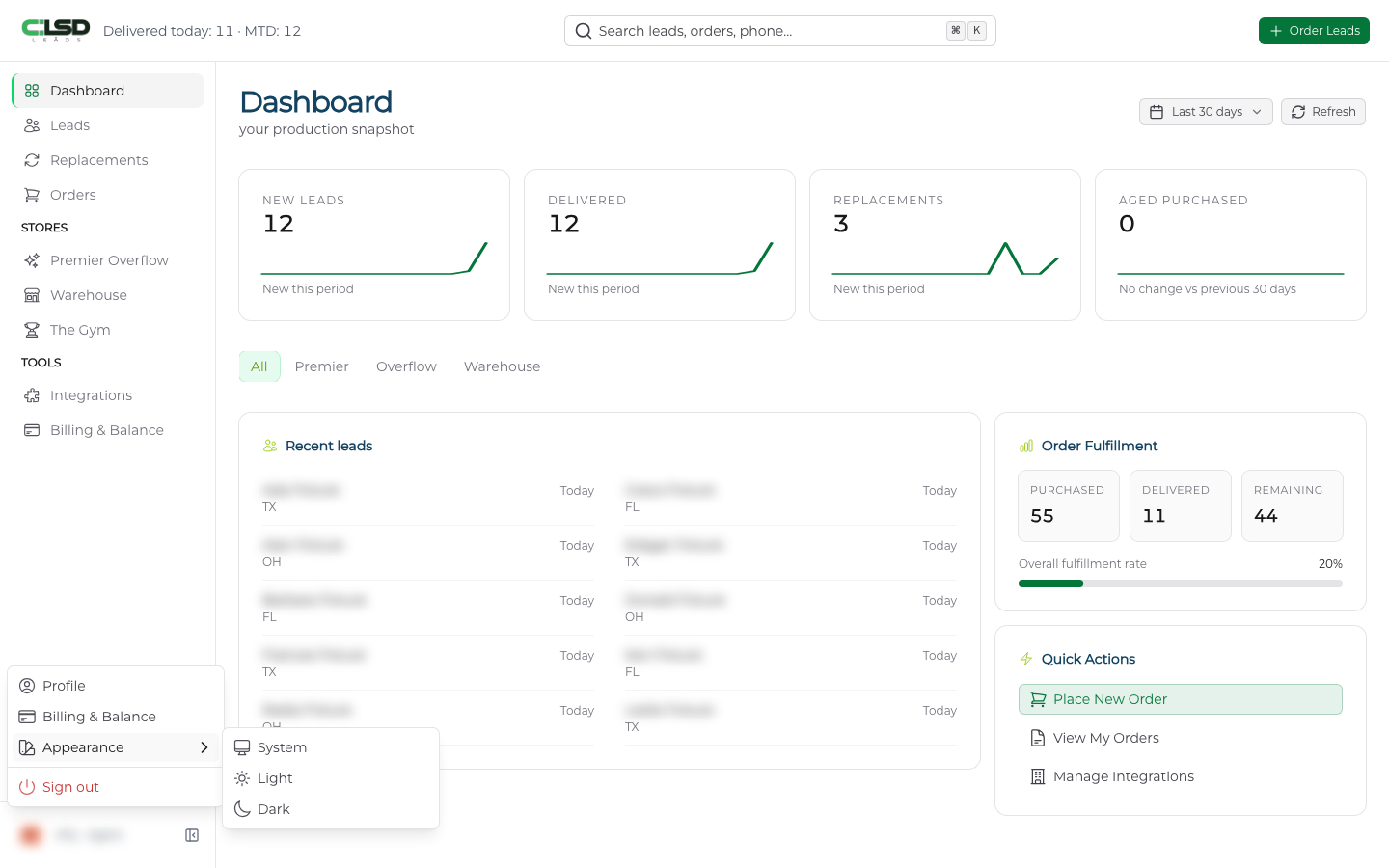
Click your name at the bottom of the left sidebar. A menu opens with Profile, Billing & Balance, Appearance and Sign out. Choose Profile to open your profile.
Appearance
Open the user menu and choose Appearance. Pick System, Light or Dark. System follows your device setting.
Signing out
Open the user menu and choose Sign out. You land on the sign in page.
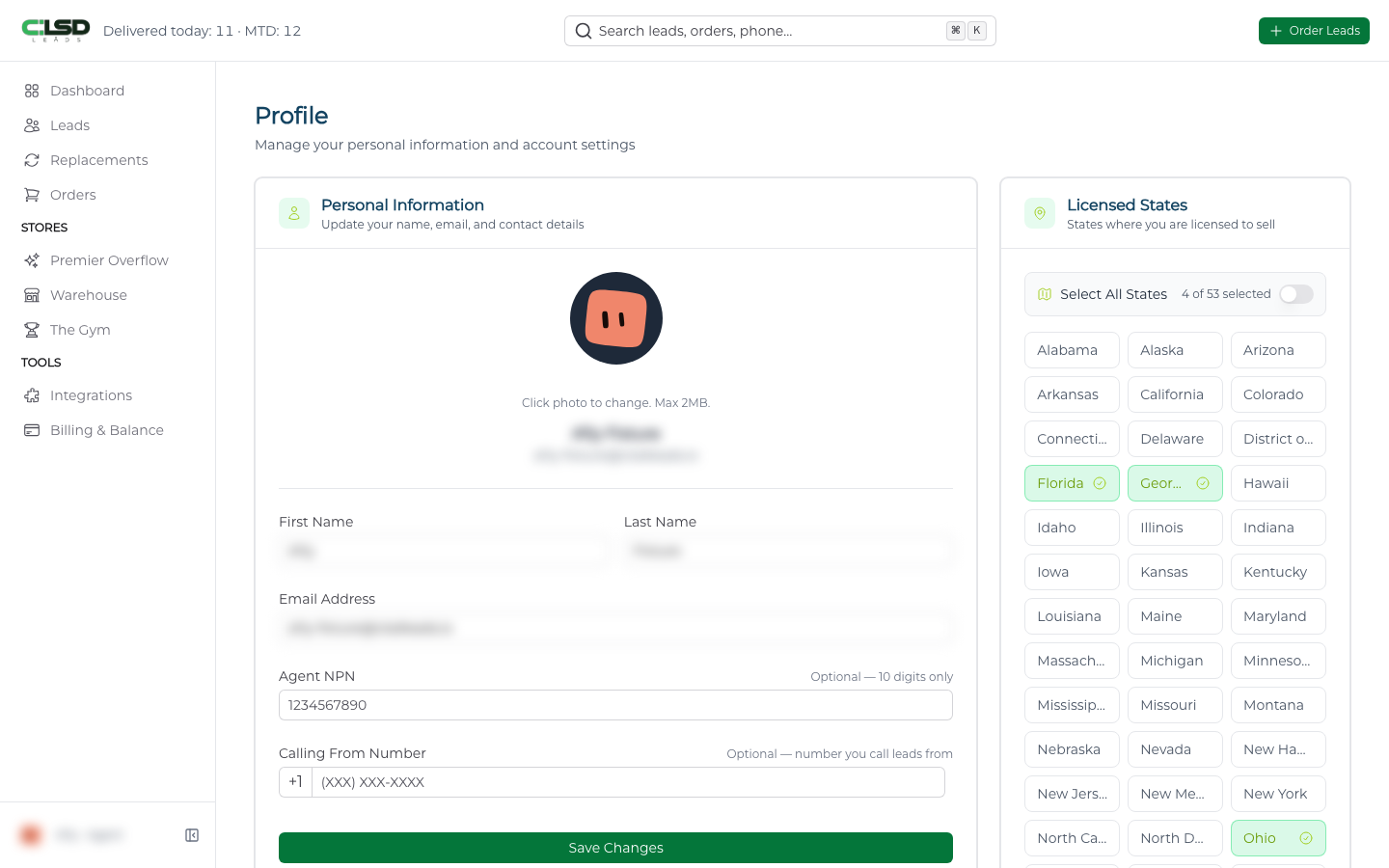
Personal Information
The Personal Information card has five fields.
- First Name and Last Name.
- Email Address. This is the address we show on your account. To change the address you sign in with, contact support.
- Agent NPN. Optional, and the field asks for 10 digits. The order form fills it in from here so you do not retype it on every order.
- Calling From Number. Optional. The number you call leads from.
Click Save Changes. A "Profile updated!" message confirms it.
Your photo
Hover over the photo circle at the top of the card and click it to pick an image, up to 2MB. A Save Photo button appears under the preview. Click it to upload. To take a photo down, click Remove.
Password
Step 1. Type the new password twice
The Password card is headed Set a New Password and has two fields, New Password and Confirm Password. The new password needs at least 8 characters, with an uppercase letter, a lowercase letter, a number and one of ! @ # $ % ^ & *.
Step 2. Click Update Password
A "Password Updated" message confirms it.
Licensed States
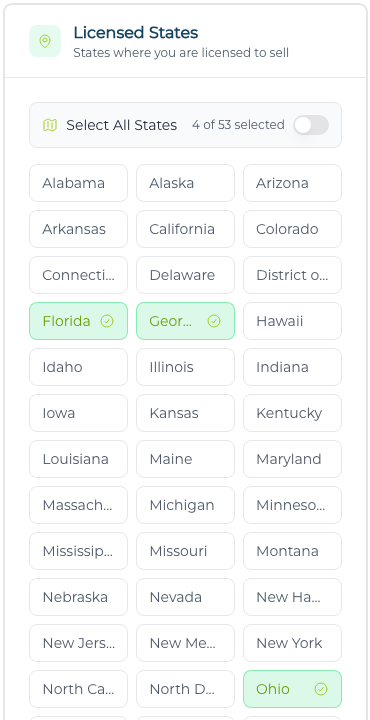
The Licensed States card lists 54 states and territories. Click a state to select it and click again to clear it. The counter at the top shows how many you have picked, for example "12 of 54 selected". The Select All States switch picks or clears every state at once.
Note
Each click saves on its own, so there is no save button on this card.
When you open the order form from the Order Leads button in the top header, the States field starts with your licensed states already filled in, and the Warehouse starts from the same list. You can change the states on any one order without touching your profile. See Placing an order and choosing a start date and Buying aged leads in the Warehouse.
Tip
If you pick a different set on the order form, the bookmark button next to the States field saves that set back to your profile as your licensed states.
Troubleshooting
I need to change the address I sign in with
The Email Address field on your profile is the address we show on your account. To change the address you sign in with, contact support.
My new password is not accepted
It needs at least 8 characters, with an uppercase letter, a lowercase letter, a number and one of ! @ # $ % ^ & *. Type the same password in New Password and Confirm Password, then click Update Password.
Where do I close my account?
The red Danger Zone card at the bottom of the profile is where closing your account starts. Read Closing your account first, because it cannot be undone.